Overview
A deal is a pursuit you're working before it becomes an opportunity in Aspire. It only needs three things to exist: a name, an owner, and a stage. Everything else—company, contacts, properties, value—can be added now or as you learn it.
That matters because pursuits rarely start tidy. The rep who met a property manager at a trade show may have a company name and a phone number, nothing more. Log it anyway: a deal with partial details is visible, owned, and counted. A pursuit that only lives in someone's head is none of those things.
What You'll Need
- Access to Business Development
- Permission to add records to Aspire, if your company limits who can create companies, contacts, and properties from Capsa
- What you know about the pursuit: who you're talking to, the site, a rough value, and when it might close
Start a New Deal and Find the Company
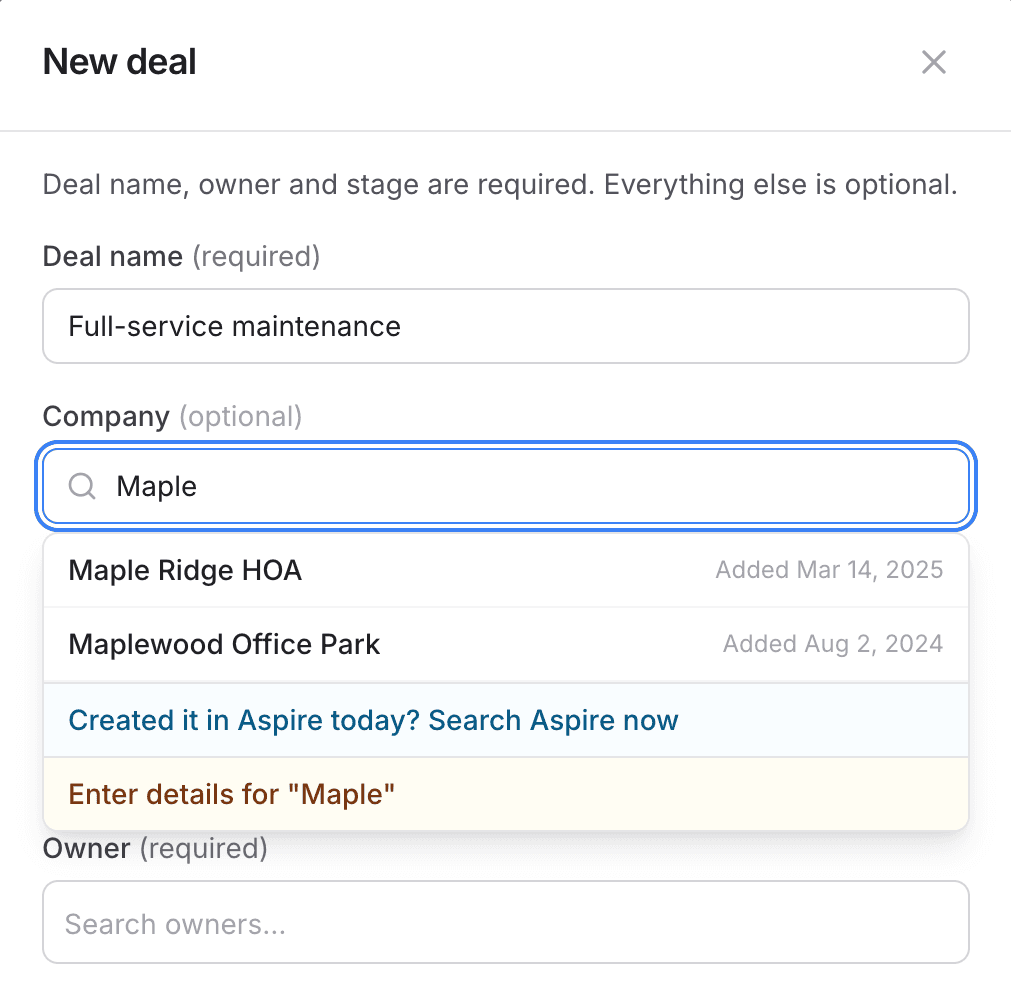
Select New deal at the top of Business Development, or the + at the top of a stage lane to start the deal in that stage. Give it a name that says what you're pursuing, such as “Full-service maintenance,” then search for the company. You'll see up to three kinds of choices:
Companies already in Aspire
Pick the match. Each result shows when it was added to Aspire, which helps you tell apart two companies with similar names.
Created it in Aspire today? Search Aspire now
Capsa's company list refreshes overnight. If someone added the company to Aspire this morning, choose this option to look it up in Aspire directly (Step 2).
Enter details for a new company
Not in Aspire at all? Keep the name and choose Add to Aspire to create it now, or Save in Capsa only to capture it and add it to Aspire later. The deal shows Not in Aspire yet until it's connected.
Link a Company Created in Aspire Today
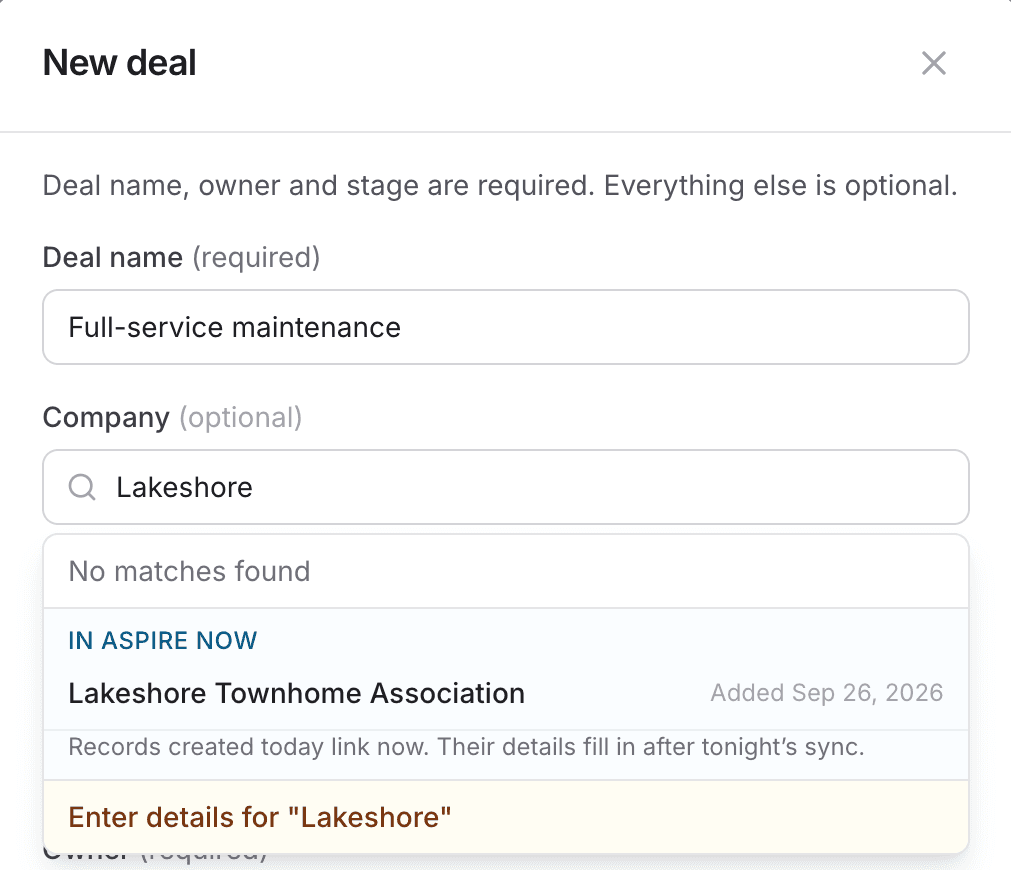
Choose Search Aspire now. Capsa looks the name up in your Aspire account and lists what it finds under In Aspire now. Pick the company, and Capsa confirms it in Aspire before attaching it to the deal.
The company links right away and shows Just added. Its full details fill in after tonight's sync—there's nothing else to do.
The same search works for contacts and properties. For a property, you can also paste its address from your browser while it's open in Aspire.
Fill In the Pursuit
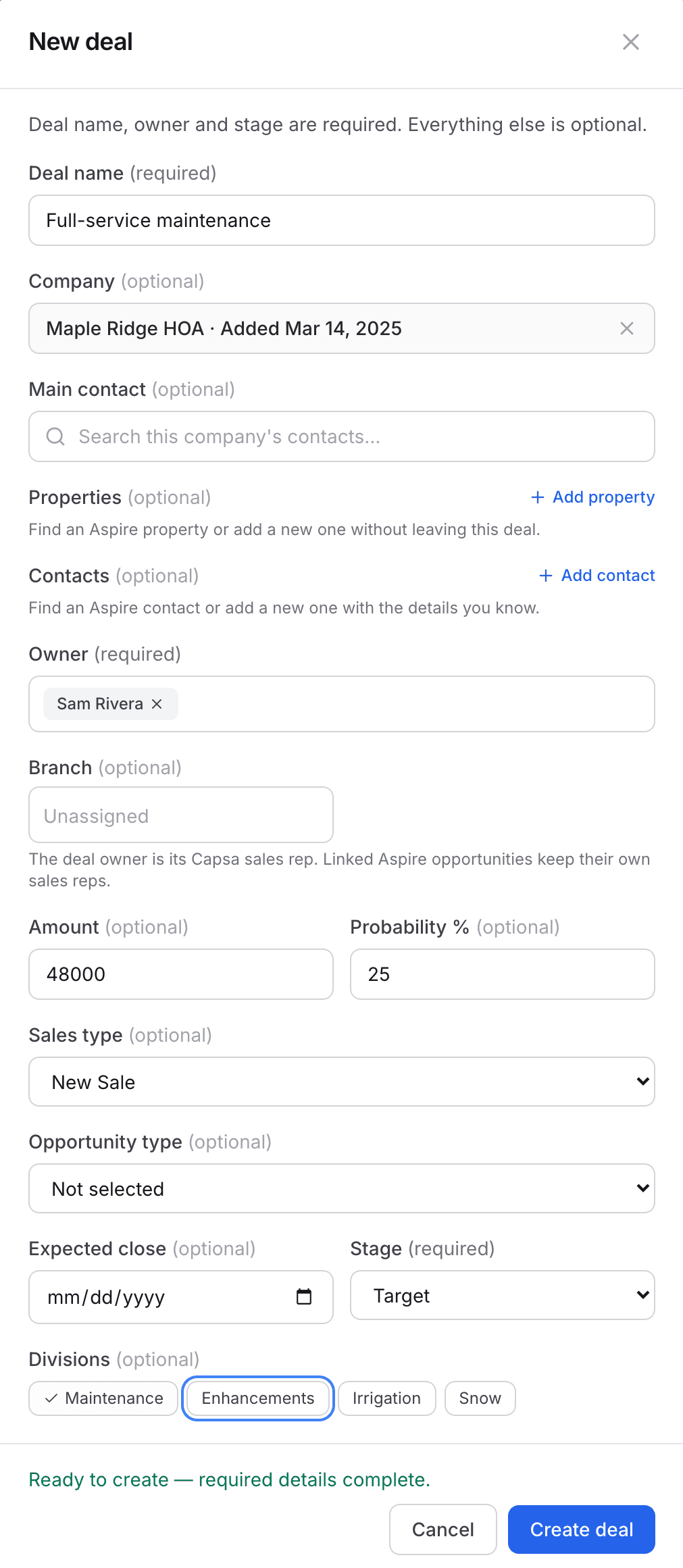
Add what you know. The fields that matter most for the pipeline are:
- Owner (required): the rep accountable for the pursuit. The owner is the deal's Capsa sales rep.
- Amount and Probability %: your best estimate of the deal's value and the odds of winning. Together they drive the weighted pipeline.
- Stage (required) and Expected close: where the pursuit stands today and when you expect a decision. Leave the close date blank if you don't know it yet.
- Sales type, Opportunity type, Branch, and Divisions: how the deal is grouped in filters and reports.
- Main contact, Properties, and Contacts: search Aspire or add new ones with whatever details you have.
The bottom of the form lists anything still missing. When it reads Ready to create, select Create deal.
Adding new records to Aspire
- Add to Aspire saves the company, contact, or property to Aspire right away. If you cancel the deal afterward, the Aspire records stay.
- Before creating, Capsa checks for similar companies and contacts already in Aspire. Use the existing record when it's a match instead of creating a duplicate.
- An Aspire contact has to belong to a company, so add or pick the company first.
Round Out the Deal
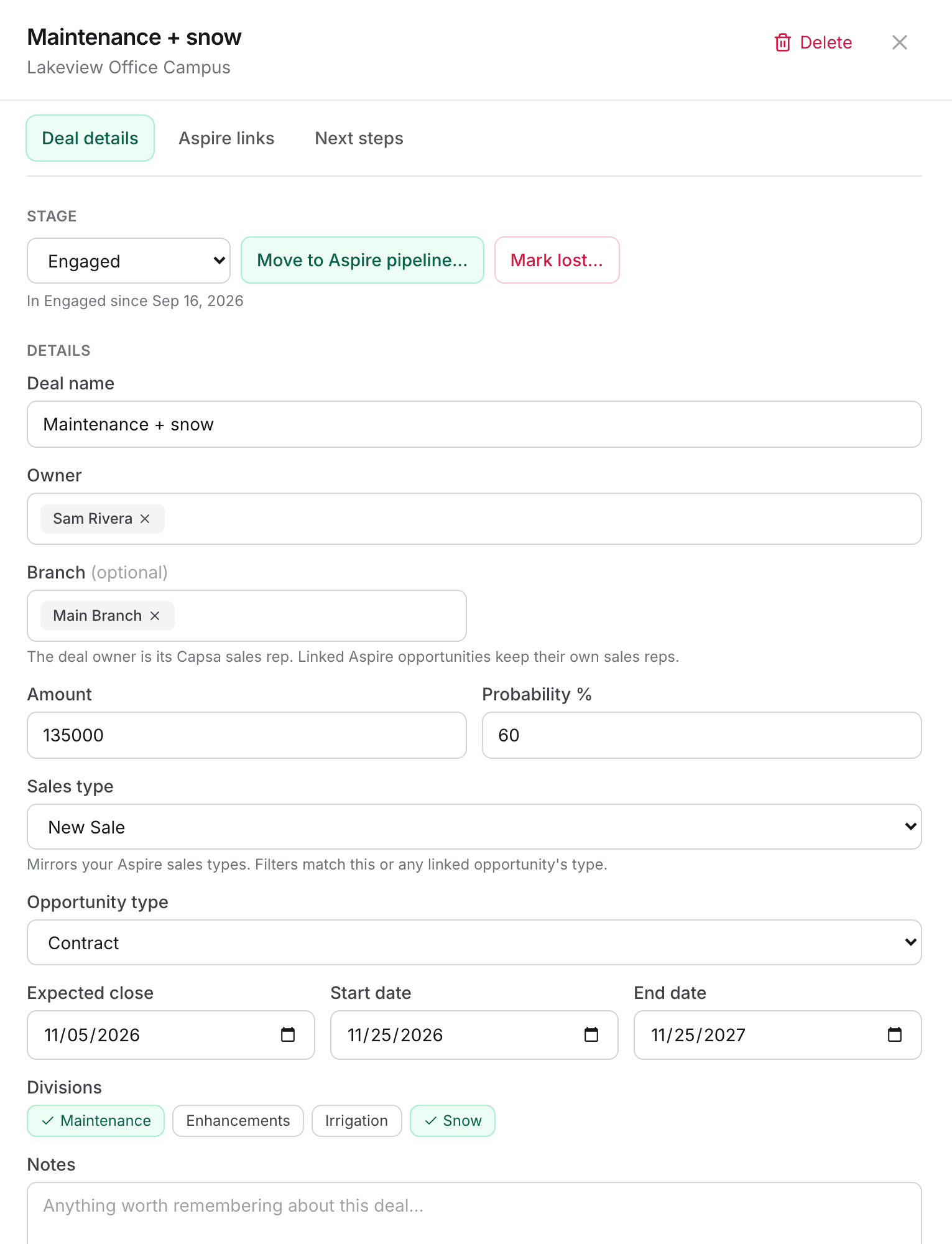
Select the deal card to open it. Deal details holds everything from the form, plus Start date and End date for contract work. Update the stage from here as the pursuit progresses; the deal notes how long it has been in its current stage.
Aspire links collects the deal's company, properties, contacts, and any Aspire opportunities, each with a History of the other deals and opportunities it has been part of.
Plan the Next Step Before You Leave
Open Next steps and select Add next step. Start from a template to fill in the task, due date, and assignee in one click, or write your own. Choose Also create in Aspire to put the task on the assignee's Aspire list as well.
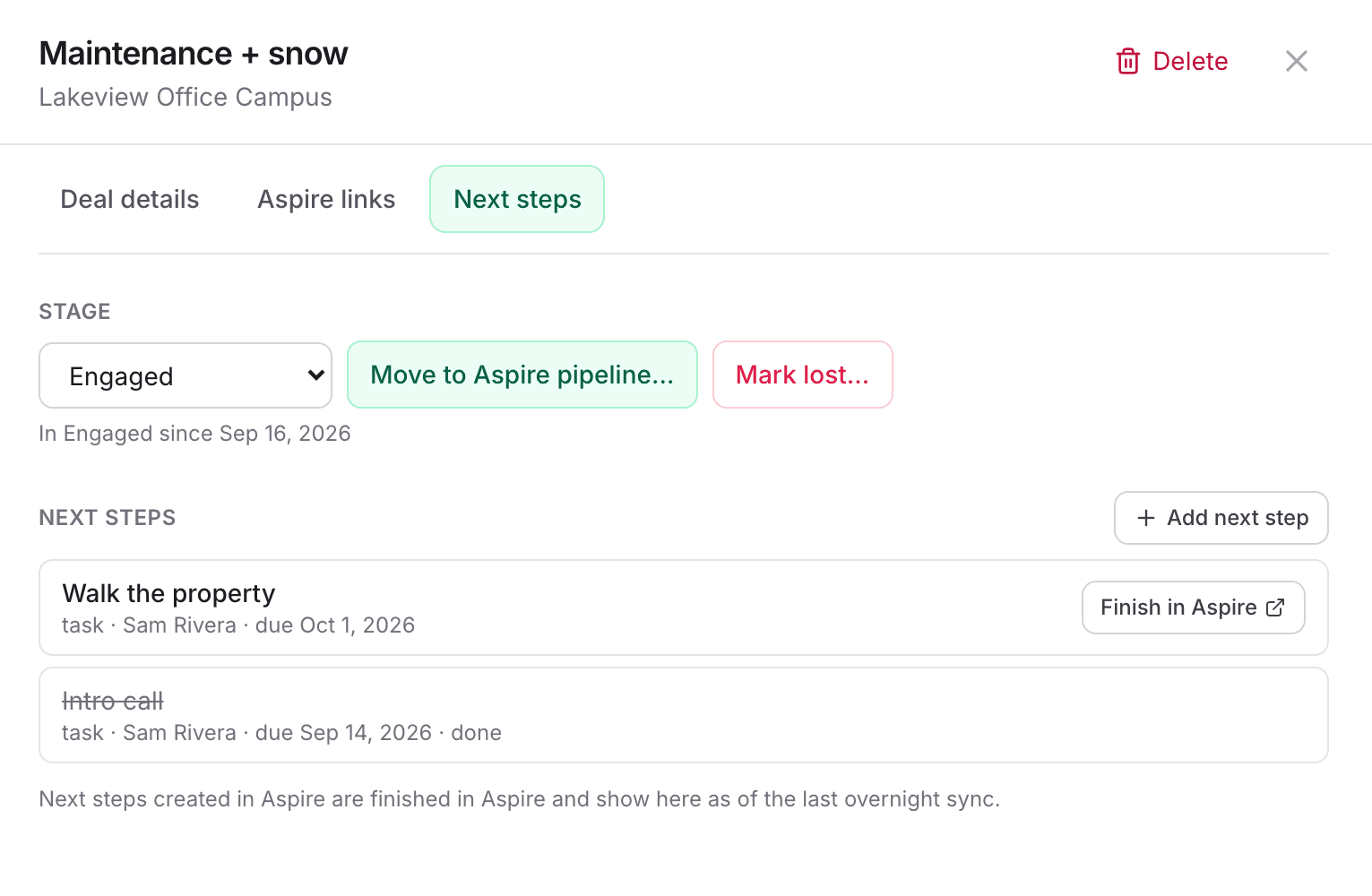
Steps created in Capsa only are marked done in Capsa. Steps created in Aspire are finished in Aspire and show here as of the last overnight sync.
Best Practices
- Name the pursuit, not the customer. The company already shows on the card. “Irrigation retrofit” tells the team what you're selling.
- Never leave a deal without a next step. The board flags it in red, and the Queue puts it at the top of the list.
- Search before you create. Check Aspire—including records created today—before adding a company, so estimators aren't left with duplicates.
- Set a value early. A rough amount and probability are more useful to leadership than a blank that can't be added up.