Overview
Aspire reports start when an opportunity exists. Business Development reporting covers the stretch before that: the pursuits your reps are working, what they're worth, and how likely they are to turn into work.
There are three places to look, each for a different question: the board for a quick read by stage, the table for a filtered list you can export, and the pipeline report for your pre-Aspire and Aspire pipelines side by side.
What You'll Need
- Access to Business Development
- Access to Pipeline Manager as well, to build the combined pipeline report
- Deals with an amount and probability, so pipeline and weighted value add up to something meaningful
How Deal Value Is Counted
Pipeline value
A deal's value is its own amount until you link Aspire opportunities to it. Once opportunities are linked, the deal is worth the total of those opportunities, so the number follows the real estimates.
Weighted value
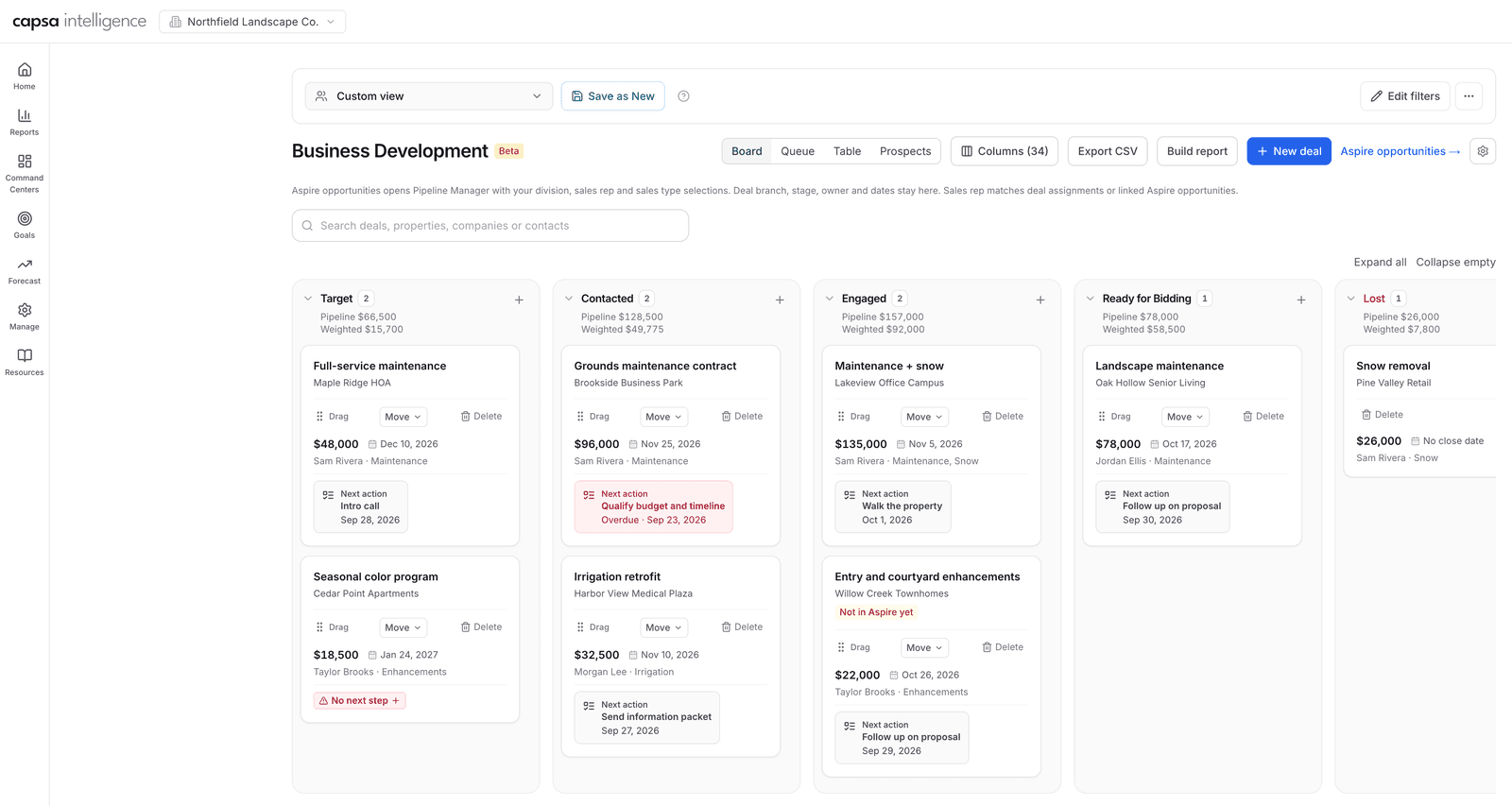
Weighted value is the deal's value multiplied by its probability. A $96,000 deal at 40% contributes $38,400 to the weighted pipeline.
Read the Board by Stage
Every lane shows how many deals it holds, its Pipeline total, and its Weighted total. Read left to right: a healthy pipeline has plenty of early-stage value feeding a smaller, more certain set of deals ready for bidding.
Filter, Then Switch to the Table
Select Edit filters to narrow the deals by stage, owner, branch, division, sales type, sales rep, created date, or start date. Filters apply to the board, the Queue, and the table alike. Save a combination you'll reuse with Save as New—for example, “East Branch maintenance” or “My deals.”
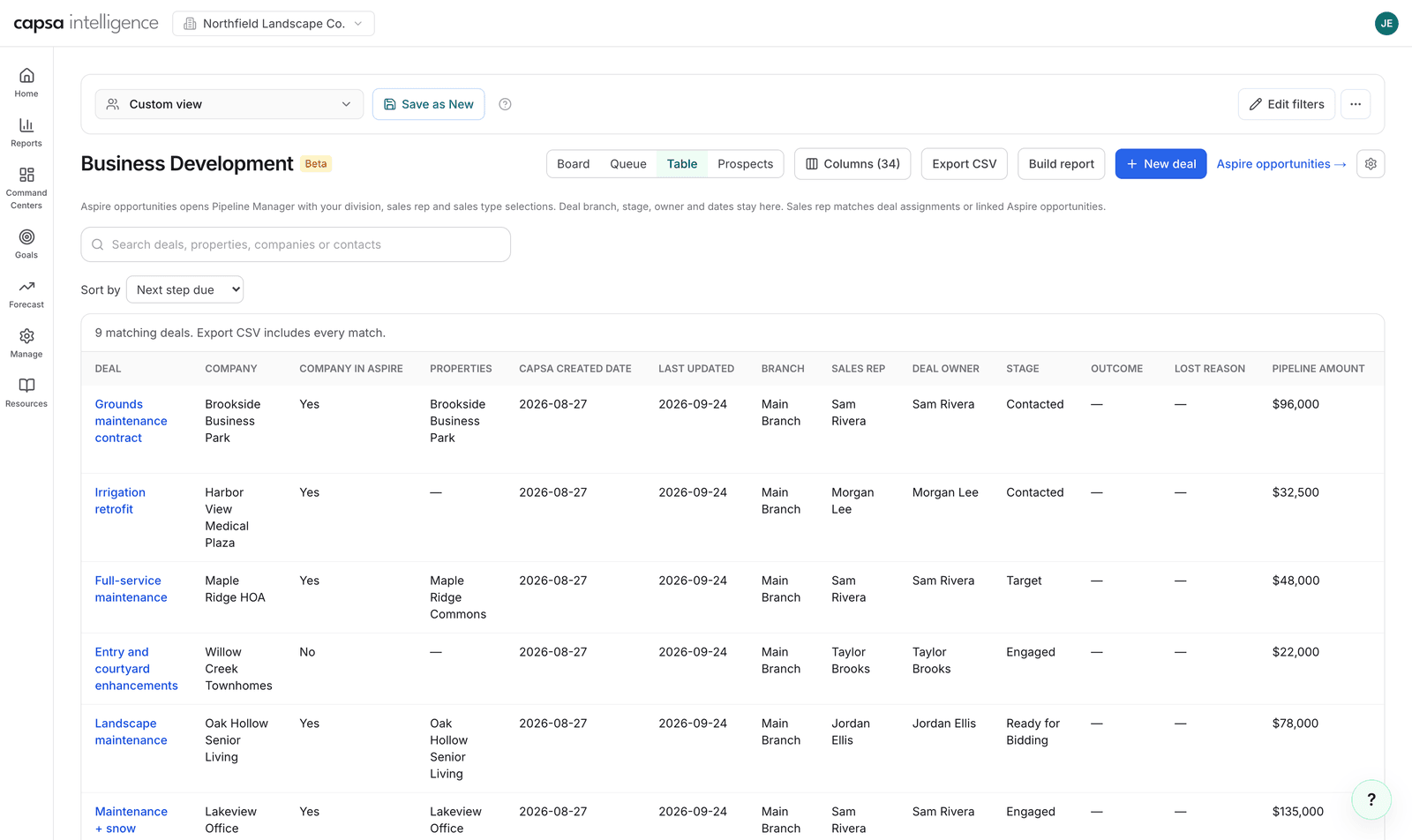
Switch to Table for one row per deal. Use Columns to choose what you see: company, properties, owner, stage, outcome and lost reason, pipeline amount, linked Aspire value, probability, weighted amount, expected close, next step and due date, linked opportunity numbers, and more.
Exporting
Export CSV includes every deal that matches your filters, not only the rows on screen.
Build the Combined Pipeline Report
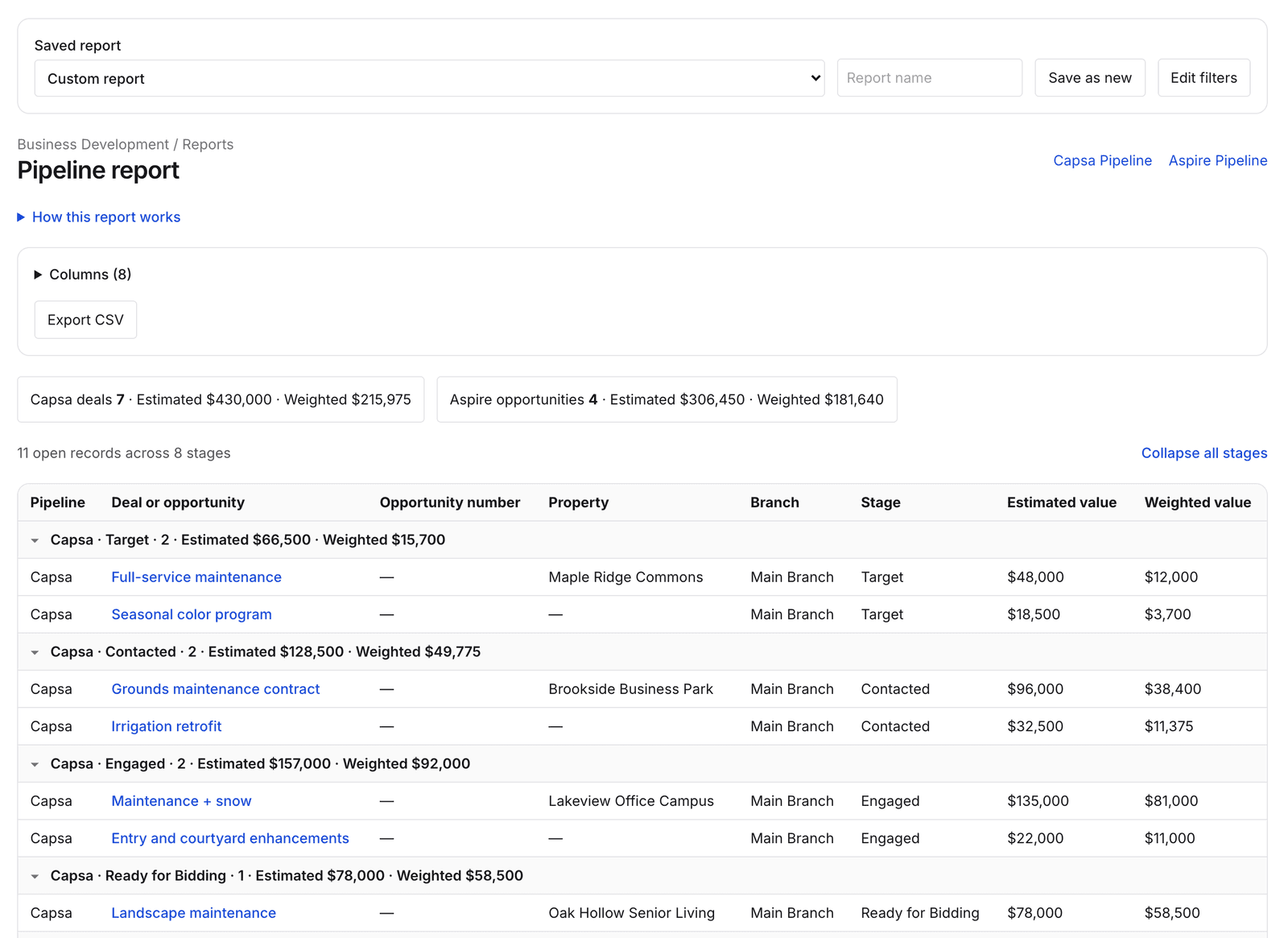
Select Build report to open the Pipeline report. It lists your open Business Development deals and your open Aspire opportunities together, grouped by stage, so leadership sees the whole pipeline—from first conversation to delivered proposal—in one place.
Two totals, two weightings
The summary shows Capsa deals and Aspire opportunities separately, each with estimated and weighted value. Capsa deals are weighted by the deal's probability; Aspire opportunities by their Sales Forecast probability.
Filter and save it
Filter by sales group, branch, and stage, choose columns, and save the report by name so the monthly review always starts from the same view. Export CSV is available here too.
Once a deal moves into Aspire, the report counts it through its linked opportunity on the Aspire side. Open How this report works on the report for the full explanation.
Check the Needs attention list
The report calls out records that can't be counted cleanly—for example, a deal moved into Aspire without a usable linked opportunity. Link the opportunity from the deal so its value lands in the right place.
Best Practices
- Review weighted value, not just pipeline. Pipeline says what's possible; weighted value is what you can plan around.
- Save the views you review every week. A saved view keeps the team looking at the same slice of the pipeline every meeting.
- Watch stage balance. Too little in Target and Contacted means the pipeline will run dry in a few months, even if Ready for Bidding looks strong today.
- Clean up before you report. Mark dead pursuits lost and link handed-off deals, so the numbers leadership sees are the numbers you'd stand behind.
Recommended Operating Rhythm
Weekly
Sales leader reviews the board by stage and the saved team views, and asks about any deal that hasn't moved.
Monthly
Leadership reviews the saved pipeline report: weighted pre-Aspire value beside the Aspire opportunities it's feeding.
Quarterly
Export the table to review lost reasons and how many pursuits reached Aspire, by owner, division, and sales type.