Overview
Most teams walk the properties that call, not the properties that matter. Managing accounts with intention means deciding how often each tier of your book deserves a site walk or check-in — and then making that cadence automatic so it survives busy season.
Property Command lets you filter your property list to a tier — by property tag or by contract value — and schedule recurring site walks, client check-ins, or site audits for the whole group at once. The tasks are created in Aspire, assigned to each property's account owner or to a person you choose, and keep coming on the schedule you set.
The result: your most valuable accounts get seen on purpose, your team's calendar reflects your account strategy, and no property waits for a complaint to get attention.
What You'll Need
- Access to Property Command in Capsa Intelligence
- A way to identify your tiers: property tags from Aspire (for example Tier 1 / Tier 2), or contract value as the dividing line
- A decision on cadence per tier — how often should your top accounts be walked versus the rest of the book
- A decision on ownership: assign tasks to each property's account owner, or to one named person
Filter the Property List to One Tier
Start in Property Command and narrow the property list to the tier you are scheduling. Use the property tag filter if your team tags accounts in Aspire, or sort and filter by contract value if the dollar amount is your tier definition. Combine with branch or account owner filters if each leader schedules their own book.
Save the view for next time
Save each tier as a view — for example “Tier 1 — North Branch.” When you revisit cadences at renewal time, the group is one click away.
The filtered list is the target list
Whatever properties are selected when you schedule is exactly what gets a recurring task. Check the property count before you continue.
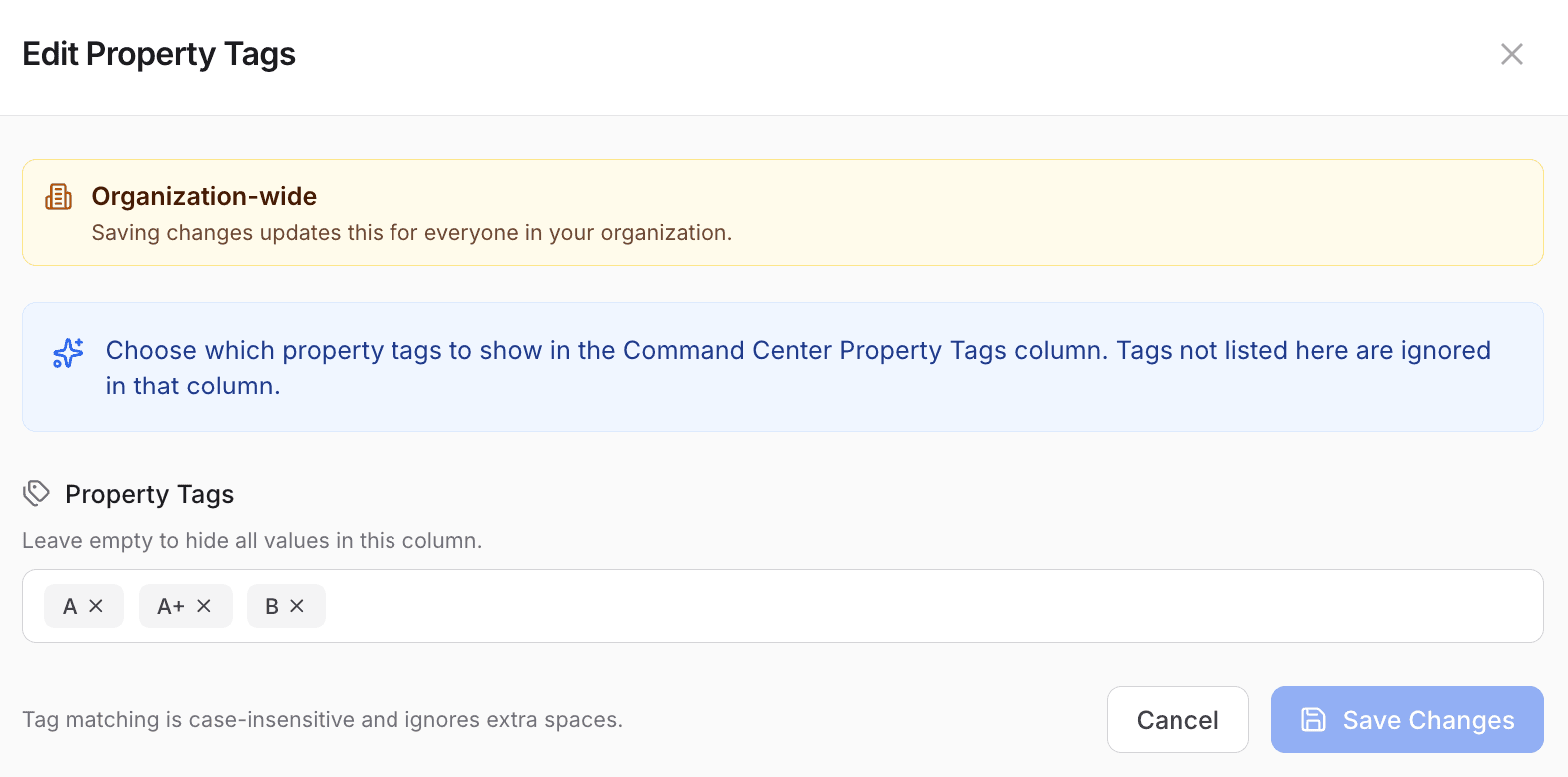
Your Aspire property tags — here A+, A, and B — become the account tiers you filter by, so every leader scopes reviews and visit cadences the same way.
Choose the Task Type and Cadence
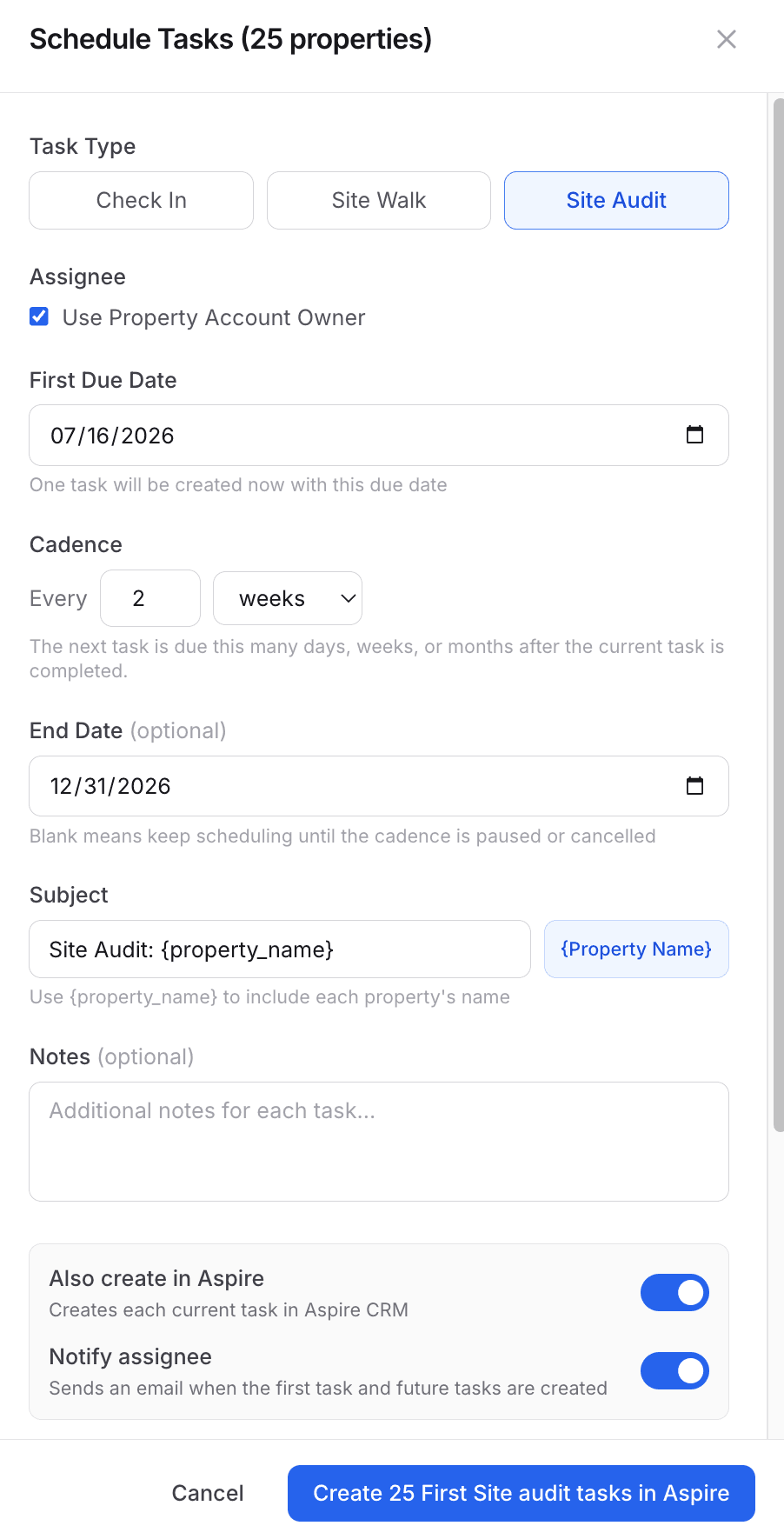
Select the properties and schedule tasks for the group. Pick the type of touch — a site walk, a client check-in, or a site audit — then set how often it should happen: every so many days, weeks, or months, starting on the date you choose, for as long as you want the schedule to run.
A common pattern: top-tier accounts get a monthly site walk, mid-tier accounts get a quarterly walk plus a seasonal check-in, and the rest of the book gets audited twice a season. Use whatever matches your service standard — the point is that the cadence is a decision, not an accident.
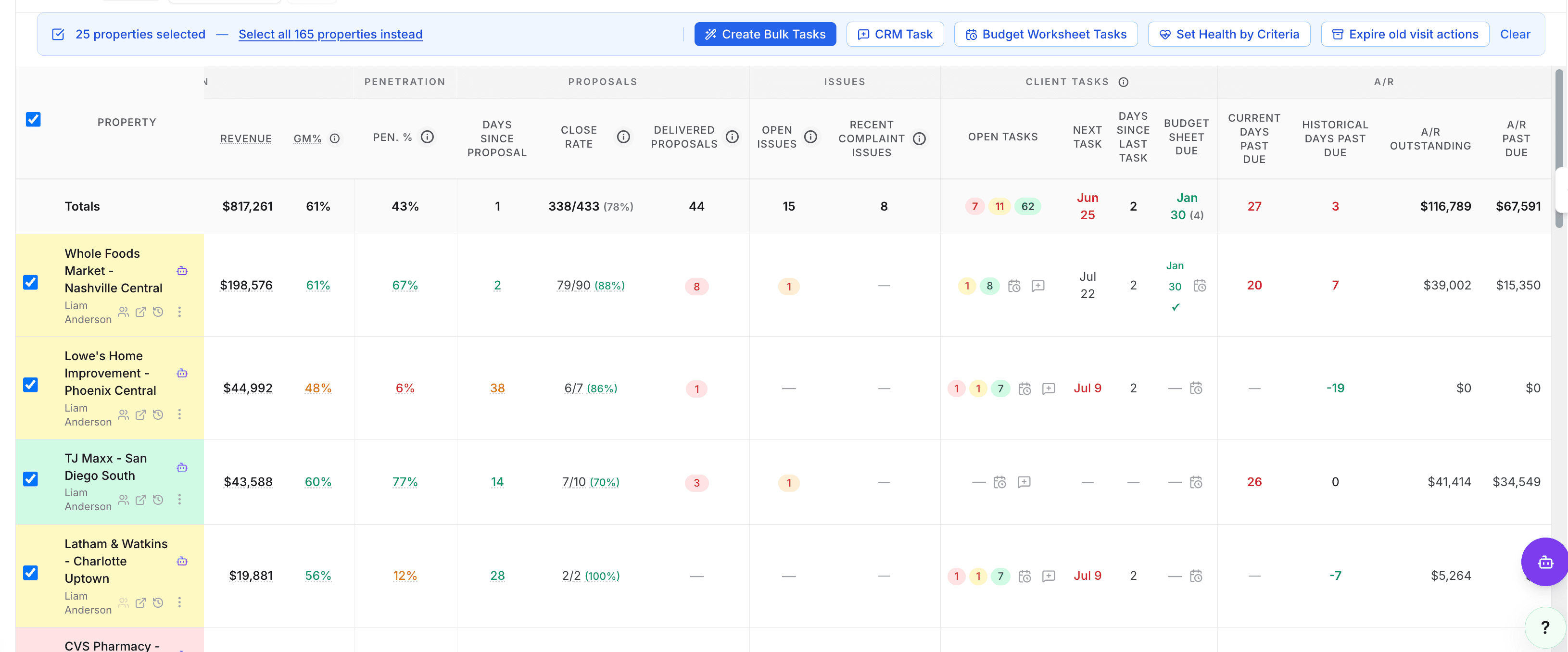
Select the properties in your tier and schedule tasks for all of them at once. The action applies to the selected properties — the bar shows the count so you can confirm the group before you continue.
Assign Ownership and Personalize the Task
Assign the tasks to each property's account owner so the work follows your book of business, or pick one person when a single manager covers the whole tier. Write the task subject and notes once — include the property name placeholder and every property gets a task that reads naturally, like “Monthly site walk — Riverside Office Park.”
Put the standard in the notes
Use the task notes to say what a good site walk covers for this tier: turf lines, bed condition, irrigation, enhancement opportunities. The task becomes the checklist.
Review the Count, Then Create
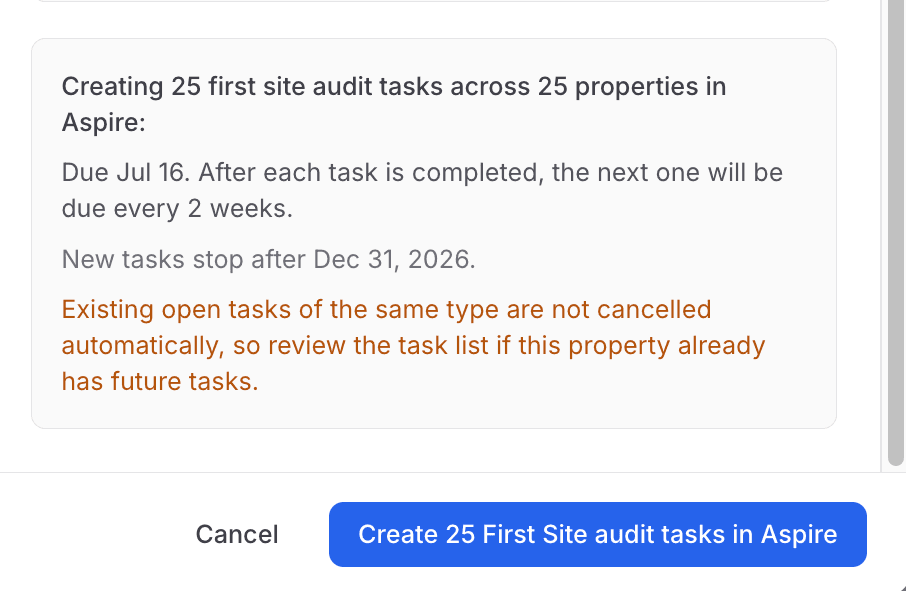
Before anything is created, you'll see how many tasks are about to be scheduled across how many properties. Confirm the numbers match the tier you filtered. The tasks are created in Aspire, so your team works them exactly where they already work.
Manage Your Cadences in One Place
Every recurring schedule you create — check-ins, site walks, and site audits — is listed under Task Automations. Adjust the cadence, update the task wording, or end a schedule when an account changes hands or a contract ends. Property Command also shows upcoming site walks on each property, so the next visit is always visible during account reviews.
Best Practices
- Set cadences at renewal time. When a contract renews, decide its tier and visit cadence in the same conversation — the schedule then runs itself for the year.
- Assign to the account owner by default. When the book changes hands, reassign the account in Aspire and update the schedule — tasks should always land with the person who owns the relationship.
- Check the property count before creating. Scheduling applies to every property you selected — a missed filter means a whole branch gets monthly walks it didn't sign up for.
- Capture what you see while you walk. Site walks are where next year's budget items and enhancement opportunities show up — record them on the property while you're standing on it.
- Review cadences quarterly. Accounts move between tiers. A quick pass over Task Automations each quarter keeps the visit plan matched to the book.