Video Walkthrough
Overview
The best property reviews do not start with disconnected reports. They start with a shared view of property health, so owners, branch managers, and account managers can quickly agree on what needs attention.
Property Command pulls the relevant signals into one property-level view: service issues, gross margin, account management proactivity, penetration, open notes, upcoming work, and past-due A/R. That makes whole property health easier to discuss without forcing each leader to rebuild the story from separate dashboards.
Health colors become the common language. Owners can scan portfolio risk, branch managers can prioritize property action, and account managers can keep customer context attached to the properties that need attention.
What You'll Need
- Access to Property Command in Capsa Intelligence
- A branch, account owner, property tag, or saved view that represents the group you want to review
- A review cadence that includes the people who can act: ownership, branch leadership, and account management
- Agreement on what should count as Healthy, Needs Attention, and At Risk for your team
- Admin permission if you plan to edit organization-wide health rules
Focus the Review on Your Properties
Start with the branch, account owner, property tag, or saved view that matches the properties you can actually influence. The goal is not to inspect every number on the screen. The goal is to create a focused review list your team can work through.
Work from the health signal first
Red properties should be reviewed first, yellow properties should be scheduled for discussion, and green properties should stay out of the way unless something new changes.
Use the surrounding metrics as the property story
When a property is flagged, the team can see the supporting context in the same place: service quality, margin, account management proactivity, penetration, A/R, and recent activity.
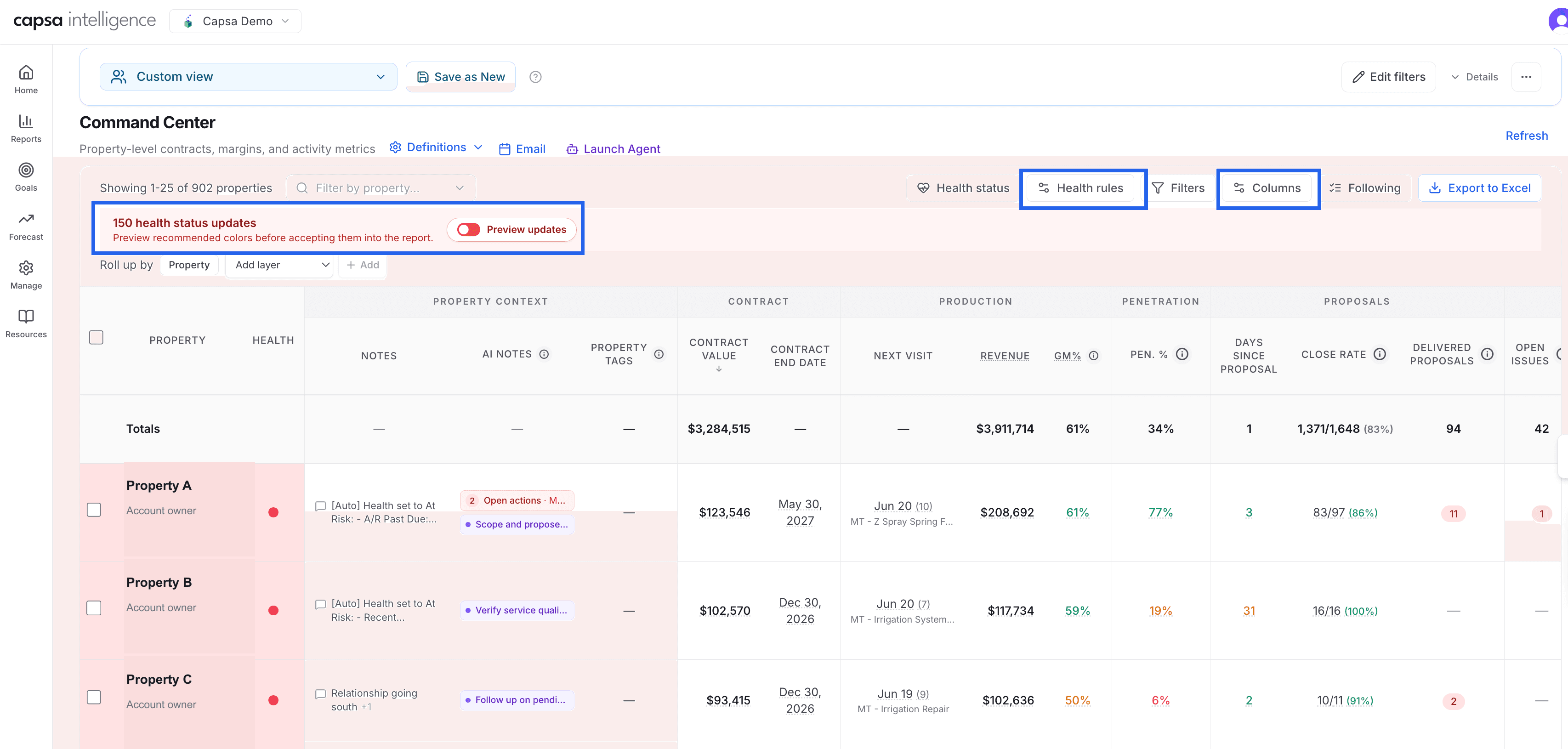
The callouts keep attention on the three controls that shape the review: preview the pending health updates, adjust the rules, and choose the columns that bring the property story into view.
Set the Standard for Risk
Health rules are the team's agreement about what deserves attention. Organization rules create the shared standard for everyone. My rules are useful when a leader wants to test a sharper lens before changing the shared playbook. For a detailed walkthrough of rule setup, use the companion guide: How to Configure Property Command Health Rules.
How the rules work
- At Risk: Use for conditions that should trigger urgent review, such as recent complaint issues, very low gross margin, or current A/R problems.
- Needs Attention: Use for properties that should be discussed soon, such as low penetration, stale proposal activity, lower margin, or past-due A/R.
- Healthy: Use for properties that are performing well across the metrics your team trusts.
- Evaluation order: Red rules run first, then yellow, then green, so the most serious signal wins.
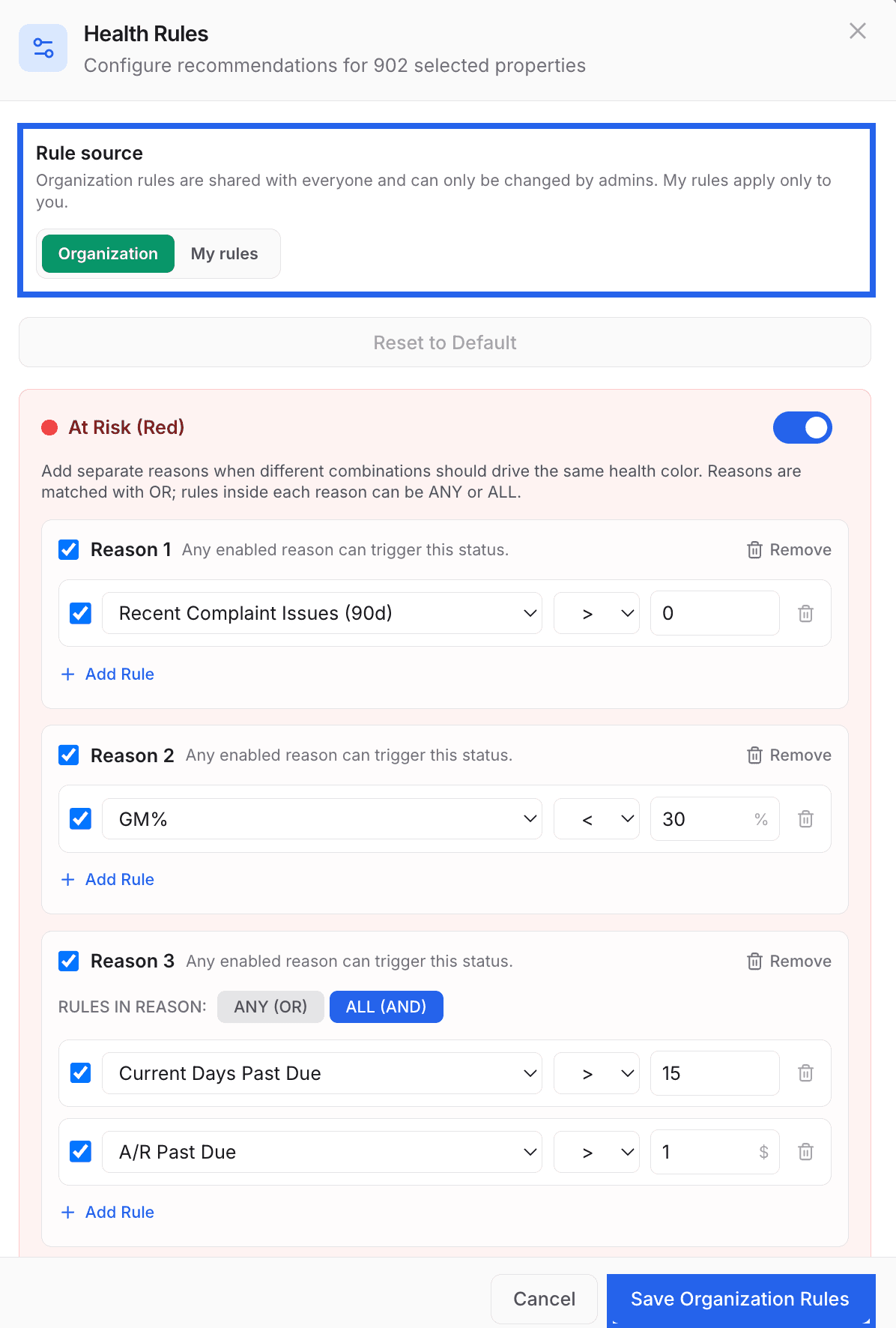
In this overview guide, the important decision is whether the team is using shared organization rules or a personal test set before saving changes.
Preview What Changed Before You Accept It
The update bar is your review queue. It tells you how many properties have a recommended health change and lets you preview those changes before they become the accepted status in the report.
Narrow the queue before deciding
If you only want to make decisions for one branch, owner, service line, or color, filter first. Accept and Dismiss apply to the filtered update queue.
Use the count to size the review
A large update count is a signal to slow down and confirm the rules still match how your branch wants to manage property health.

Review updates after the property list is filtered to the right scope. The buttons apply to the filtered update set.
Confirm the Team Decision
Before saving a bulk decision, review the movement by color. This is where a branch leader confirms whether the recommendations match what the team knows from the field, billing conversations, and customer history.
Important bulk review note
Accepting or dismissing applies to all filtered rows in the review, not only the examples shown in the preview. Add a shared note when the decision needs context for other leaders.
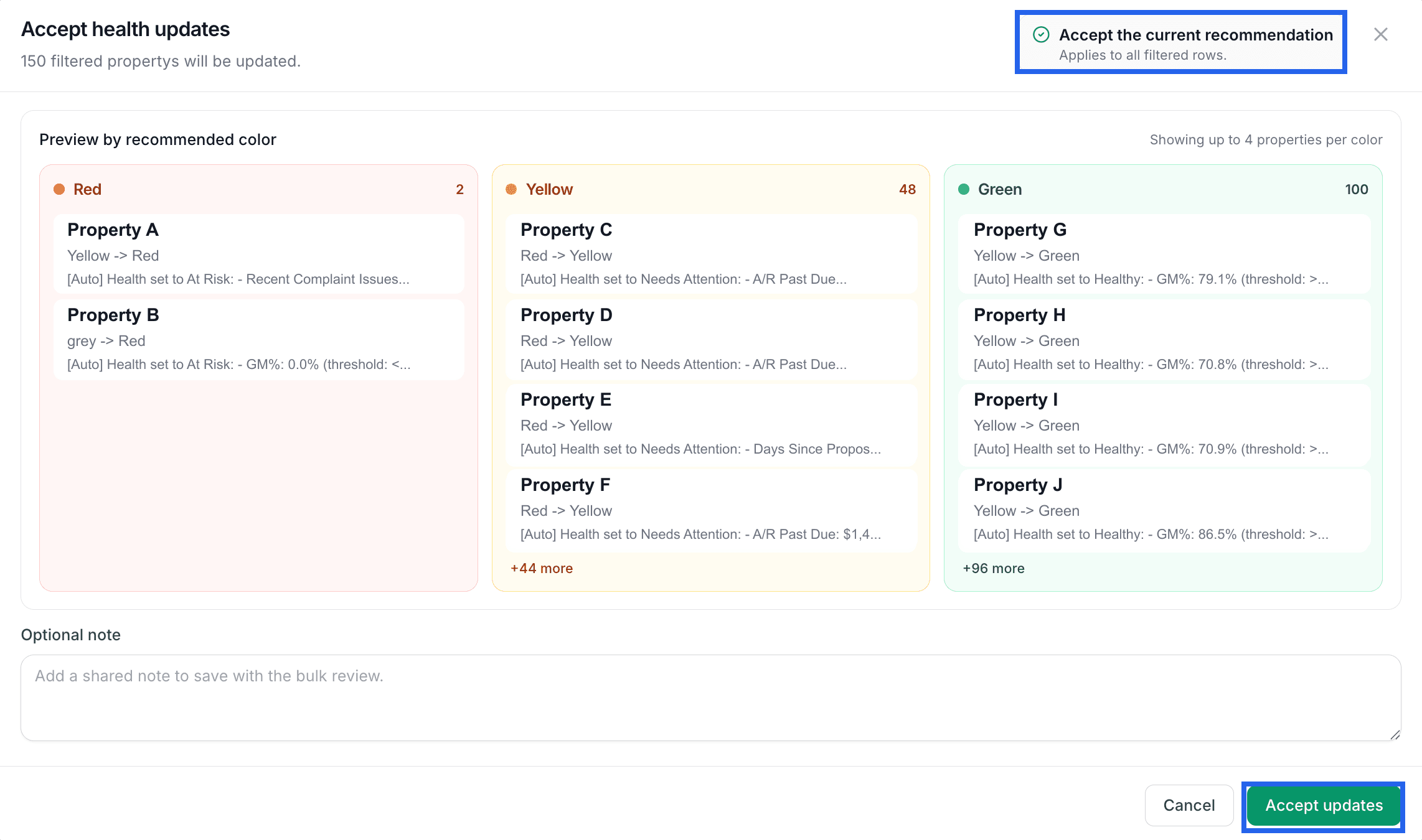
The sparse callouts emphasize the approval risk: the action applies to all filtered rows, so confirm the scope before accepting updates.
Turn the List Into Branch Action
Once the review is accepted, the red and yellow properties become the working list for leadership. The next step is not more analysis. It is assigning ownership and deciding what needs to happen before the next customer interaction.
For red properties
Confirm the reason, assign an owner, and decide what must happen before the next site visit, customer call, billing conversation, or leadership review.
For yellow properties
Look for early warning signs that can still be corrected: margin drift, stale proposals, low penetration, open issues, or payment friction.
Recommended Operating Rhythm
- Daily: Account managers and branch managers scan red properties first. Confirm owners and next actions.
- Weekly: Branch leadership previews health updates, reviews red/yellow movement, accepts trusted recommendations, and dismisses anything the rules are misreading.
- Monthly: Ownership and branch leadership revisit the shared rules. Tighten thresholds if the list is too noisy, and loosen them if issues are being discovered too late.
Best Practices
- Keep red meaningful. If too many properties are red, leaders stop trusting the signal. Reserve it for conditions that should trigger action soon.
- Use organization rules for shared standards. Personal rules are useful for testing, but branch reviews work best when everyone understands the same color system.
- Check filters before bulk decisions. The review applies to the filtered group, so confirm your branch, owner, property tag, and health filters before accepting or dismissing.
- Use notes to preserve judgment. When local context changes the decision, capture the reason so the next leader can understand the history.