Overview
Health rules turn leadership judgment into a repeatable review system. Instead of asking each leader to remember every service, margin, sales, and A/R threshold, the rules recommend a property health color from the metrics already in Property Command.
Use this guide when ownership, branch managers, and account managers want a common standard for what counts as At Risk, what should be watched, and what can stay green.
What You'll Need
- Access to Property Command and permission to review or adjust property health rules
- Admin permission to save organization rules, or personal access to test My rules
- Agreement on which property signals should trigger urgent review versus proactive account management
Choose the Rule Source
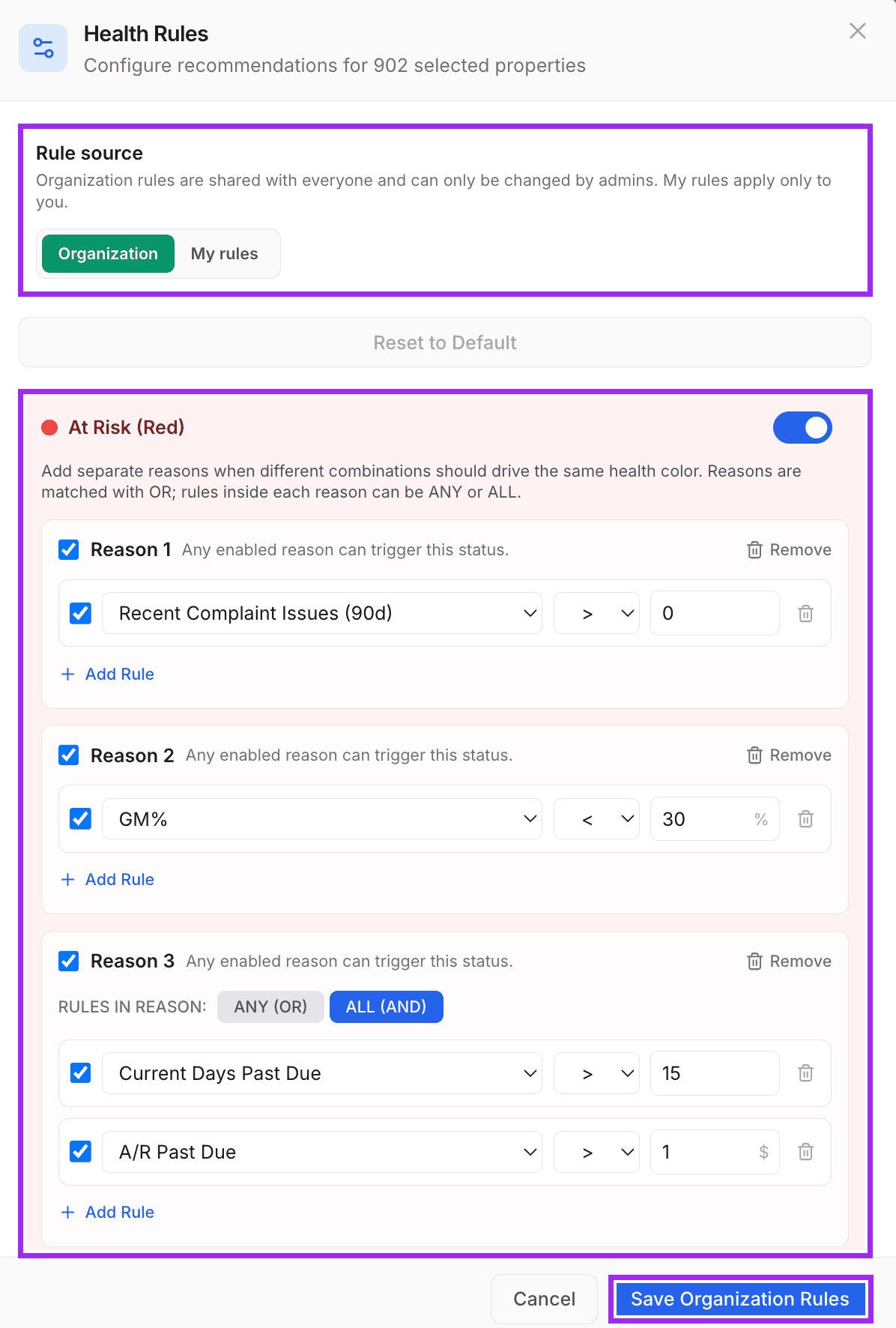
Start by deciding whether you are editing the shared organization standard or testing your own personal rules. Organization rules keep the leadership team aligned; My rules are useful for experimenting before changing the standard everyone sees.
Rule of thumb: use organization rules when owners, branch managers, and account managers need the same scorecard. Use My rules when you are testing a threshold change and want to see whether it creates a cleaner review list.
Understand the Evaluation Order
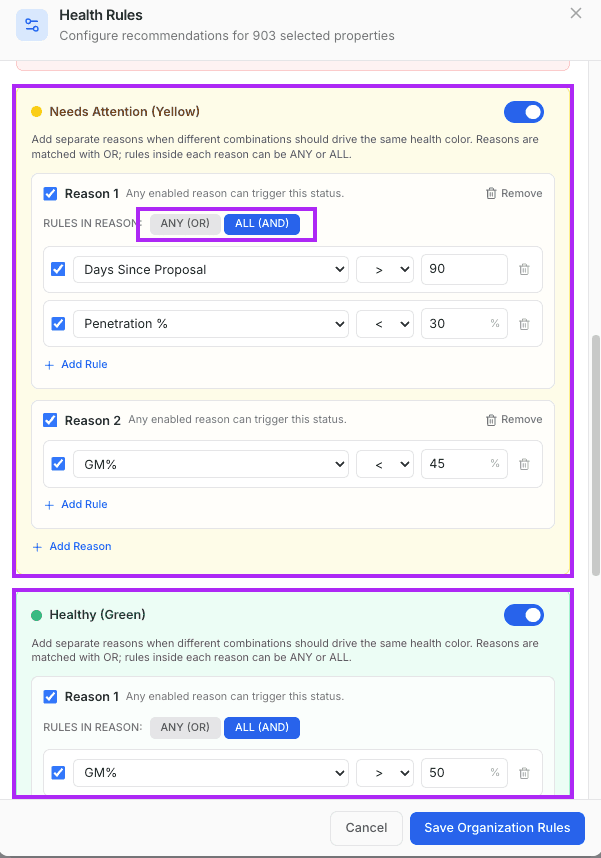
Property Command checks health colors in priority order. Red rules run first, then yellow, then explicit green rules. If a property matches a red reason, it becomes At Risk even if it also matches a yellow or green condition.
1. At Risk
Use for urgent leadership review: complaints, severe margin pressure, or meaningful current A/R risk.
2. Needs Attention
Use for watch-list properties that should be discussed before they become urgent.
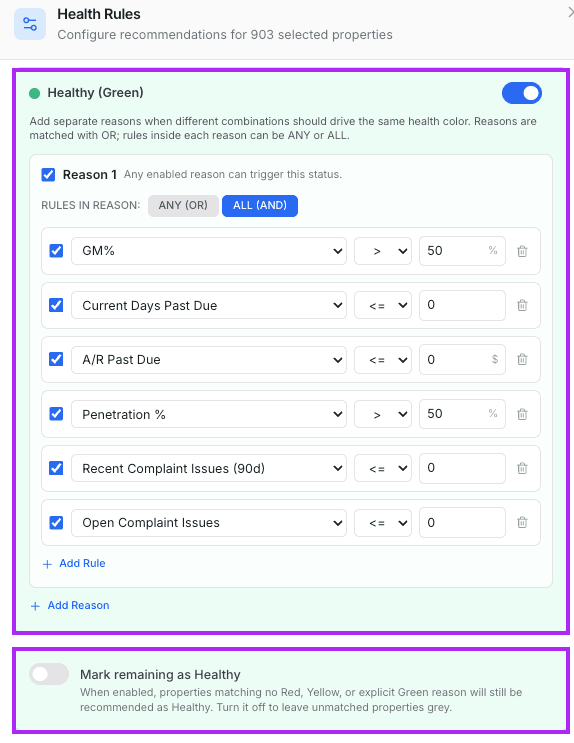
3. Healthy
Use for properties that pass the operating standards your team trusts.
Build Reasons, Then Rules
Each health color can have multiple reasons. Reasons are matched with OR logic: if any enabled reason matches, that color can be recommended. Inside each reason, choose whether the rules should use ANY or ALL logic.
ANY logic
Use ANY when each rule is independently important. For example, a recent complaint issue by itself may be enough to flag a property.
ALL logic
Use ALL when a combination matters. For example, current days past due and A/R past due together can be a stronger risk signal than either value alone.
Choose the Metric Options
A rule has three parts: the metric, the comparison, and the threshold. The comparison can be greater than, less than, greater than or equal to, or less than or equal to.
Service and relationship signals
- Recent Complaint Issues (90d)
- Open Issues
- Open Complaint Issues
- Days Since Activity
Business health signals
- GM%
- Penetration %
- Close Rate %
- Delivered Proposals
Account management proactivity
- Days Since Penetration Proposal
- Low penetration paired with stale proposal activity
- Proposal activity that is not converting
Receivables signals
- Historical Days Past Due
- Current Days Past Due
- A/R Outstanding
- A/R Past Due
Decide How Green Should Work
You can create explicit green rules, such as strong GM%, no current past-due A/R, no complaint issues, and healthy penetration. You can also turn on Mark remaining as Healthy, which recommends green for properties that do not match red, yellow, or explicit green rules.
Practical choice: leave Mark remaining as Healthy off if you want unmatched properties to stay grey until the team has confidence in the rules. Turn it on when red and yellow rules are strong enough that anything not flagged should be treated as healthy.
Recommended Starting Point
- At Risk: recent complaints, GM% below your red threshold, or current past-due A/R paired with meaningful dollars past due.
- Needs Attention: stale proposal activity with low penetration, lower margin, or any past-due A/R that should be discussed.
- Healthy: clear margin strength, no current past-due A/R, good penetration, and no complaint activity.
After You Save
Saving the rules does not automatically mean every recommendation should be accepted. Return to the property-health review, preview the changes, and confirm the filtered update set with the right leaders.
Continue to the property-health review guide ->