Video Walkthrough
Overview
Property Notes is the running history of what your team has learned about an account. It keeps customer decisions, site constraints, exceptions, and health changes beside the property metrics your team already reviews.
Notes can also provide context for Capsa's account-management analysis. Use them for durable facts another teammate should understand later—not as a substitute for assigning work that needs an owner and due date.
Property notes and AI training notes serve different purposes. Property notes preserve the account history. AI training notes give Capsa direct guidance about how future recommendations should be evaluated.
What You'll Need
- Access to Property Command and permission to create property notes
- A shared expectation for what belongs in the customer history versus an internal task or issue
- Aspire property-note access if the same note should also be added to Aspire
- A clear, factual reason whenever a note changes the property's health status
Open the Property History
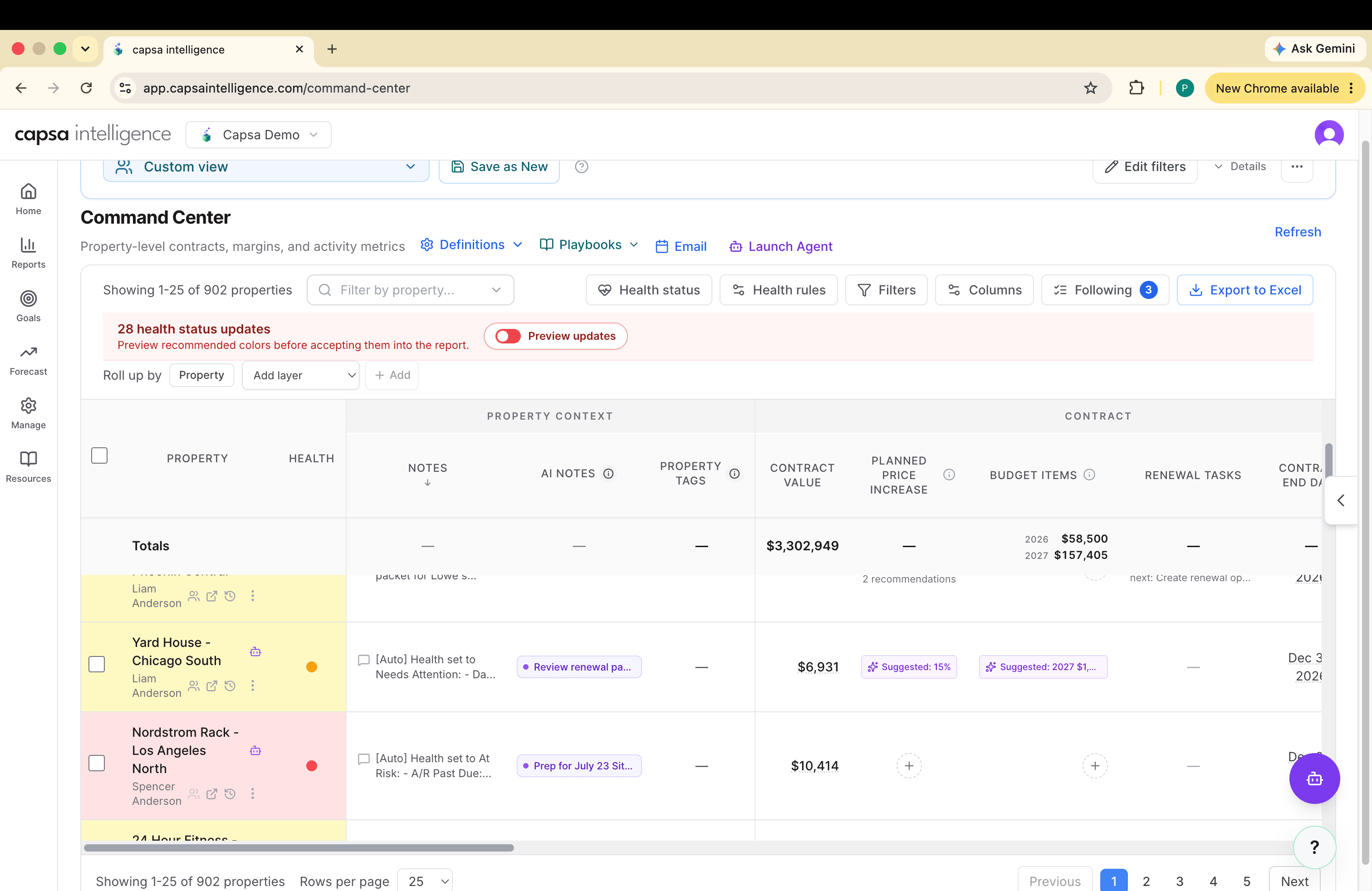
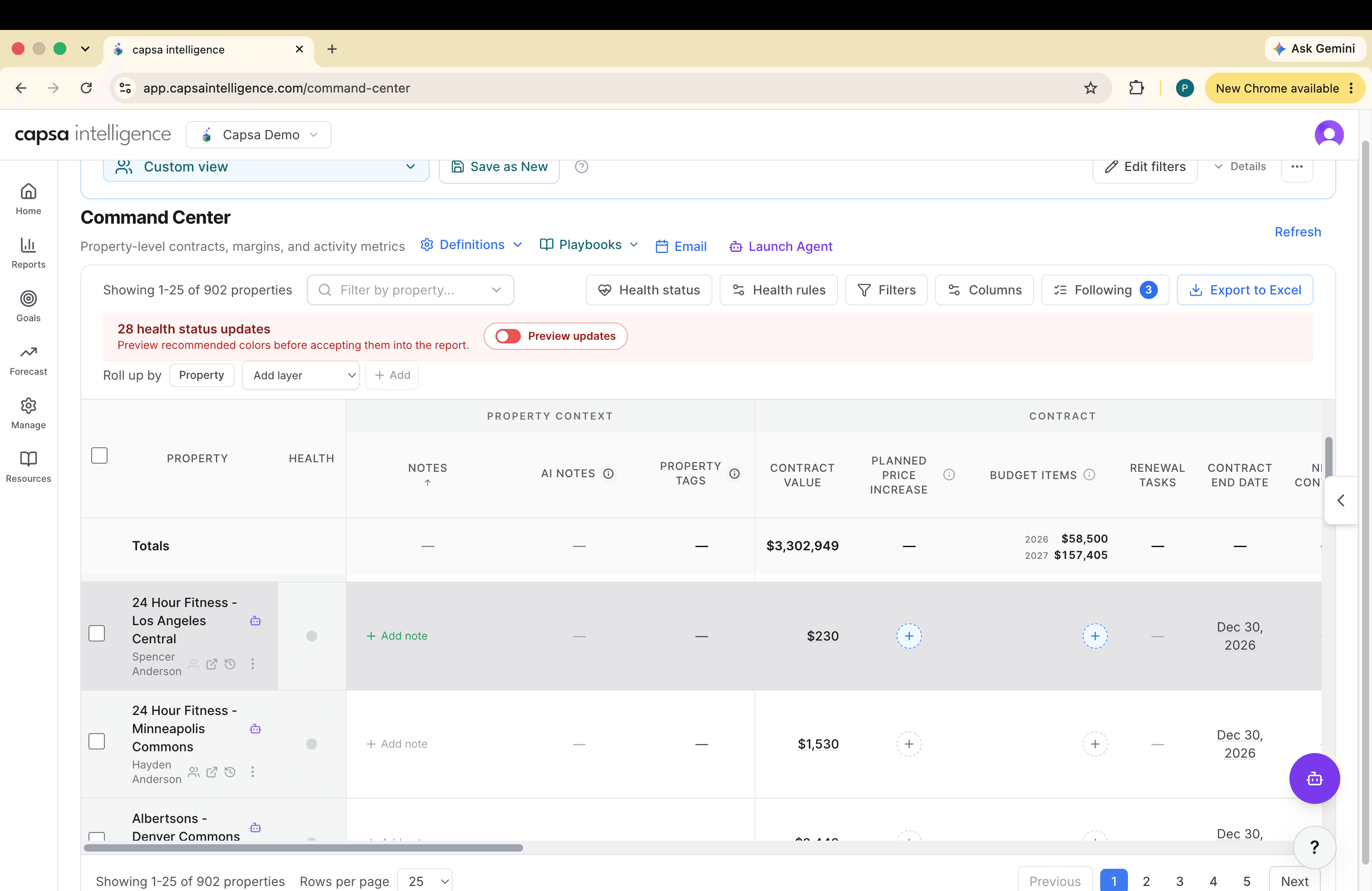
Find the property in Property Command and use the Notes column to open its history. A note preview means the property already has context to review. Add note starts the history for a property that does not have one yet.
Read the Timeline Before Adding Context
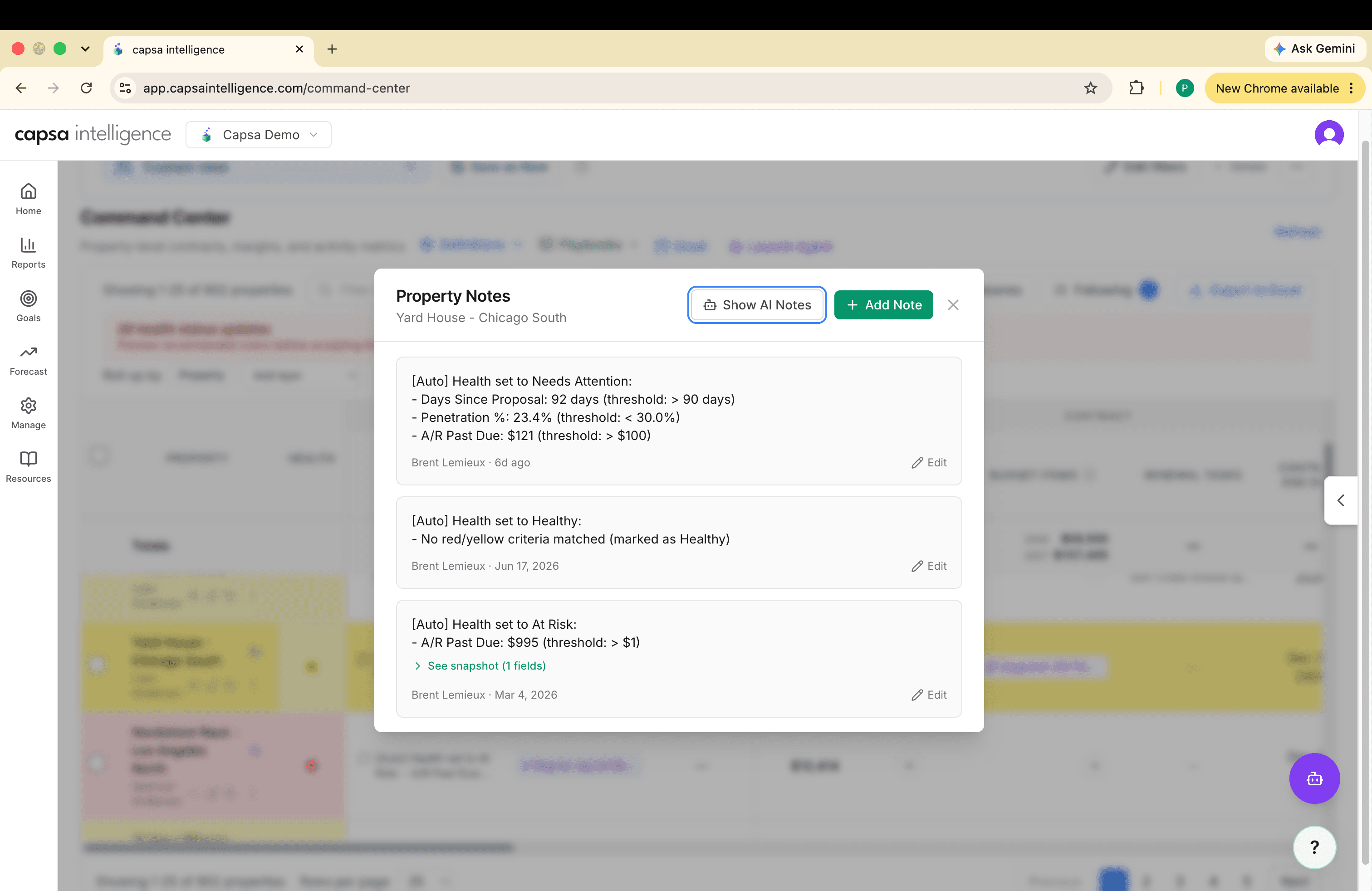
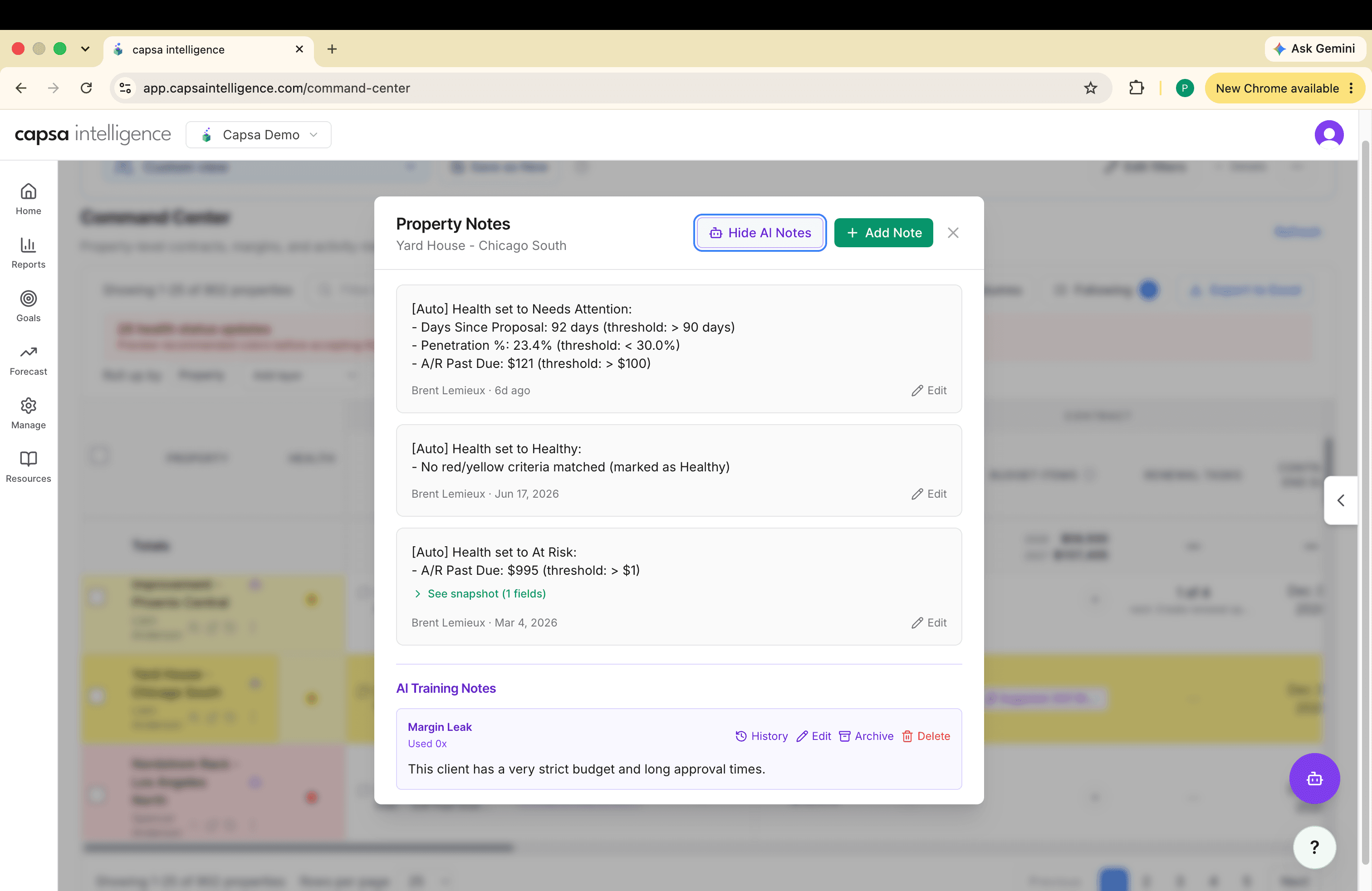
Review the existing notes before adding another one. Automatic health changes begin with [Auto] and record why the property moved to Healthy, Needs Attention, or At Risk. That history helps the next reviewer understand how the account changed instead of seeing only today's color.
Add new information, not a duplicate
If the important fact is already documented, add a comment or update the existing note when appropriate. Start a new note when the property story has materially changed.
Write a Note the Next Person Can Use
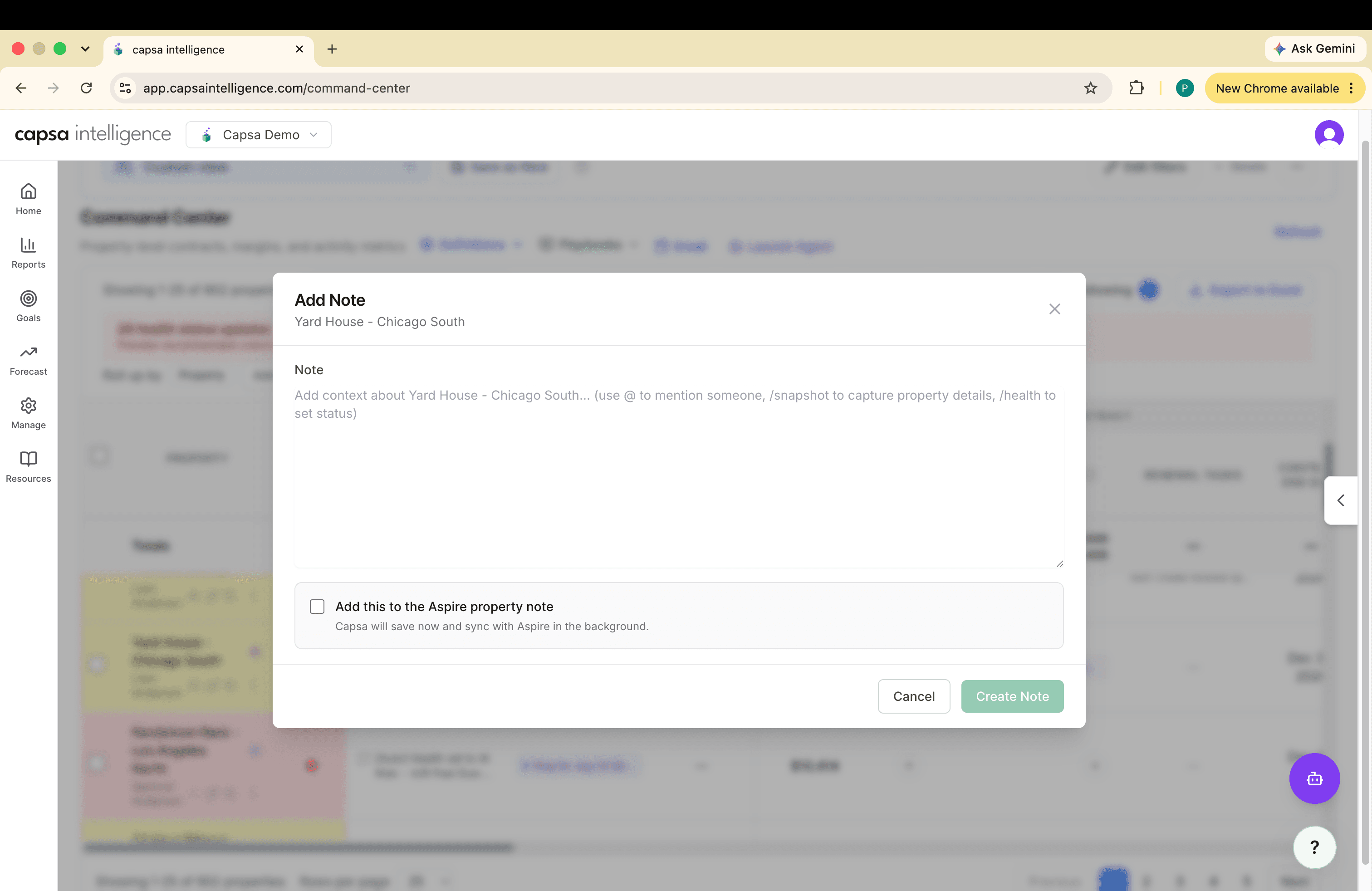
Record the fact, why it matters, and what the team decided. Good property notes explain durable context such as a customer preference, site-access constraint, seasonal exception, pricing conversation, or reason a health status changed.
Mention a teammate
Type @ and select a teammate when they should be notified. Mentioned teammates receive the note by email with a link back to Property Command.
Capture the current view
Type /snapshot to preserve the visible property details with the note. This helps future reviewers understand the conditions behind the decision.
Select Add this to the Aspire property note when the same context should be available to teammates working in Aspire. Capsa saves the note first and completes the Aspire update in the background.
Update Health with the Reason Attached
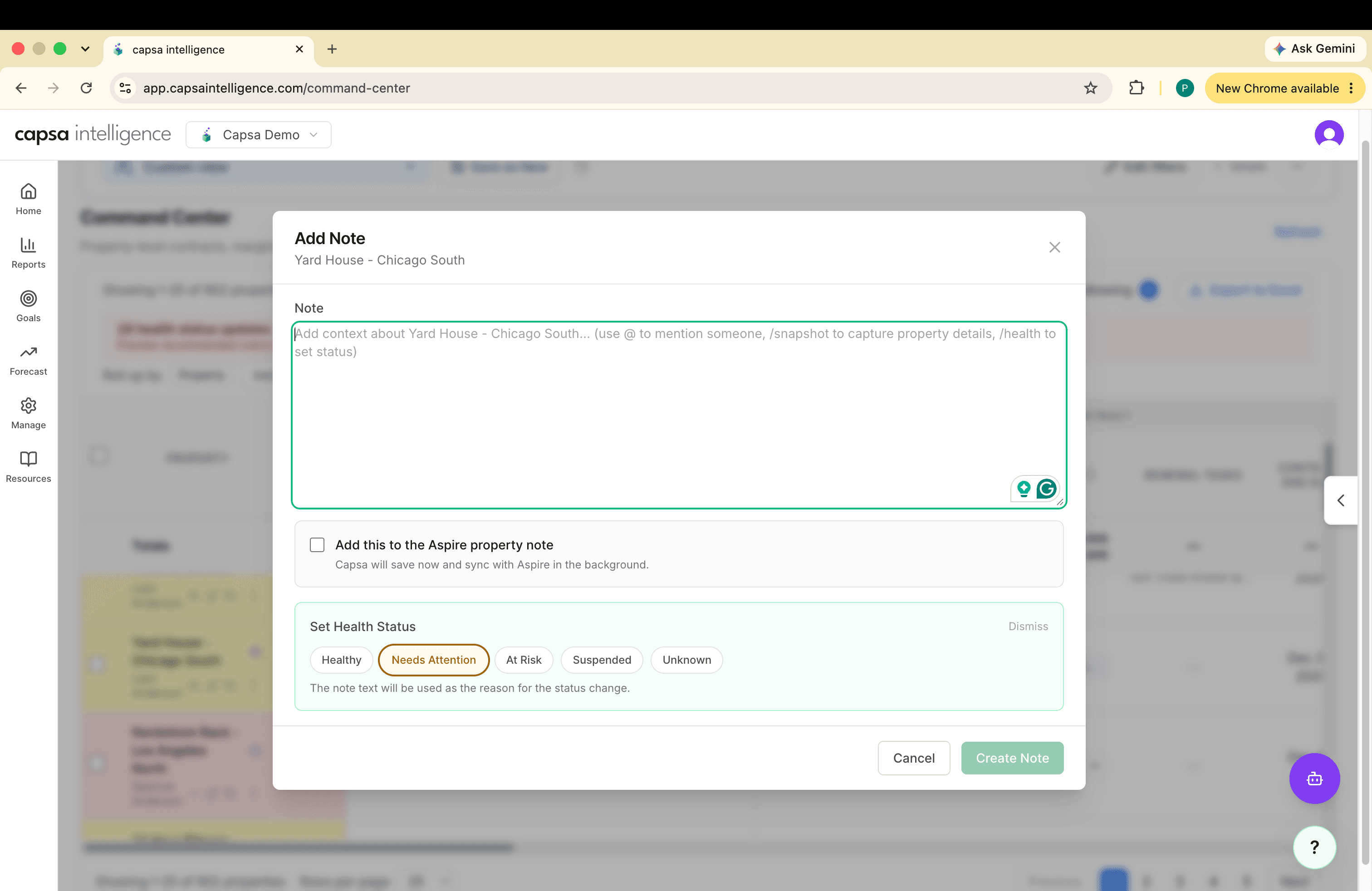
Type /health while writing a note to open the health choices. Select the new status and finish the note with the reason for the change. The note text becomes the reason attached to that health decision.
Keep the reason specific: write what changed at the property or with the customer. A color without a useful explanation makes the next review harder.
Start the History on a New Property
When the Notes column says Add note, the property does not yet have a visible note history. Use the first note to record context worth carrying forward—not simply that the property was reviewed.
Review the AI Guidance Separately
Show AI Notes reveals the AI training notes attached to the property. These are instructions your team has deliberately saved to shape future recommendations, such as a strict customer budget, long approval process, or known exception.
Review this guidance regularly and archive or update anything that is no longer true. For the workflow that creates and manages this guidance, use How to Manage AI Notes in Property Command.
Recommended Operating Rhythm
- After a meaningful customer or site decision: add the durable context while it is fresh.
- During weekly account review: read recent notes before deciding whether health or ownership should change.
- When assigning work: create a task or issue instead of expecting a property note to act like a to-do list.
- Quarterly: review property-specific AI training notes and retire guidance that is no longer true.