Video Walkthrough
Overview
AI Notes gives your team one place to see the property work that should not fall through the cracks. It brings together Aspire visit-note follow-ups and Property Command AI recommendations, then keeps those signals attached to the property list leaders already use.
Owners can scan where the portfolio needs attention, branch managers can decide what needs field or office follow-through, and account managers can turn the right items into customer notes, tasks, or issues. Everyone is working from the same property-level context instead of trading separate lists.
The advanced move is adding AI training notes when the recommendation needs durable context. That guidance helps future recommendations improve without turning every one-off decision into noise.
What You'll Need
- Ability to open Property Command and view the AI Notes column
- A branch, account owner, saved view, or filtered property list that matches the group you manage
- Agreement on who creates customer notes, who owns internal tasks, and who clears resolved visit-note actions
- A simple rule for AI guidance: save durable context, not routine work notes
How Each Role Uses AI Notes
Owners
Spot branches or accounts where unresolved work, recommendations, or risk signals are building up.
Branch managers
Decide which items need a crew follow-up, service fix, billing conversation, or account manager action.
Account managers
Create the note, task, or issue that keeps customer context and next steps connected to the property.
Start From the AI Notes Column
Begin with the properties your team is reviewing. AI Notes acts like a focused action column: red items need follow-up, amber items need review, and violet items are AI recommendations such as sales opportunities. A dash means there is no active AI Note competing for attention on that property.
Open the AI Notes guidance from the info icon beside the column name. Use it to decide which kind of work should rise to the top before you start assigning follow-up.
Keep visit-note review focused
Leave the Show only visit notes that need attention setting on for daily reviews. It keeps handled visit-note items out of the way, so account managers and branch managers stay focused on open actions and items that still need review.
Choose the right sort lens
Sort by Visit notes when you are clearing service follow-through, Margin leaks when financial risk is the priority, and Sales recs when the account team is planning proactive customer conversations.
This keeps the same property list, but changes which AI Notes deserve the first pass.
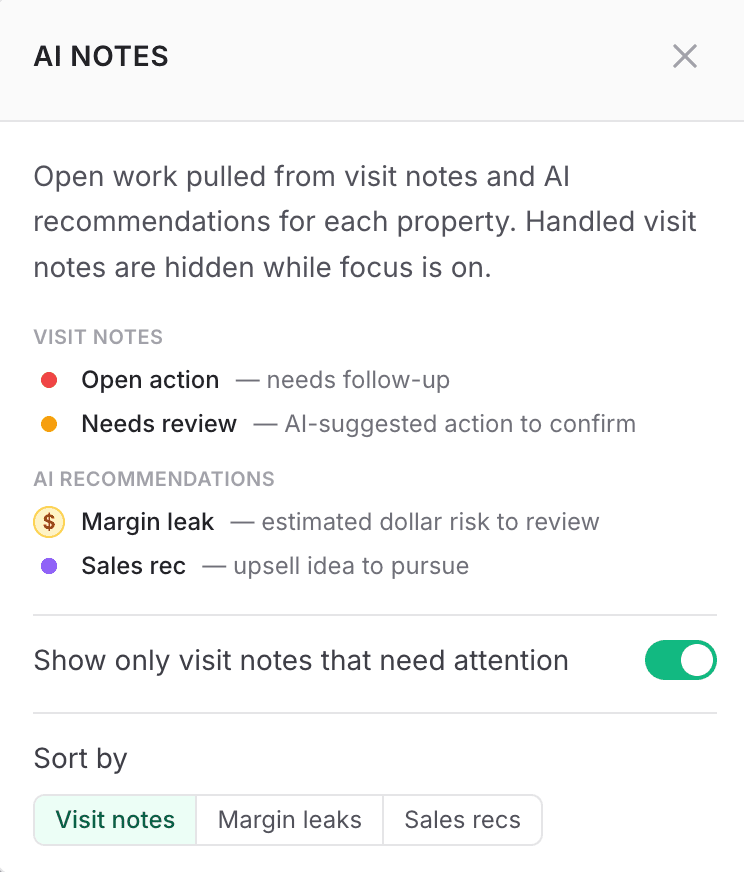
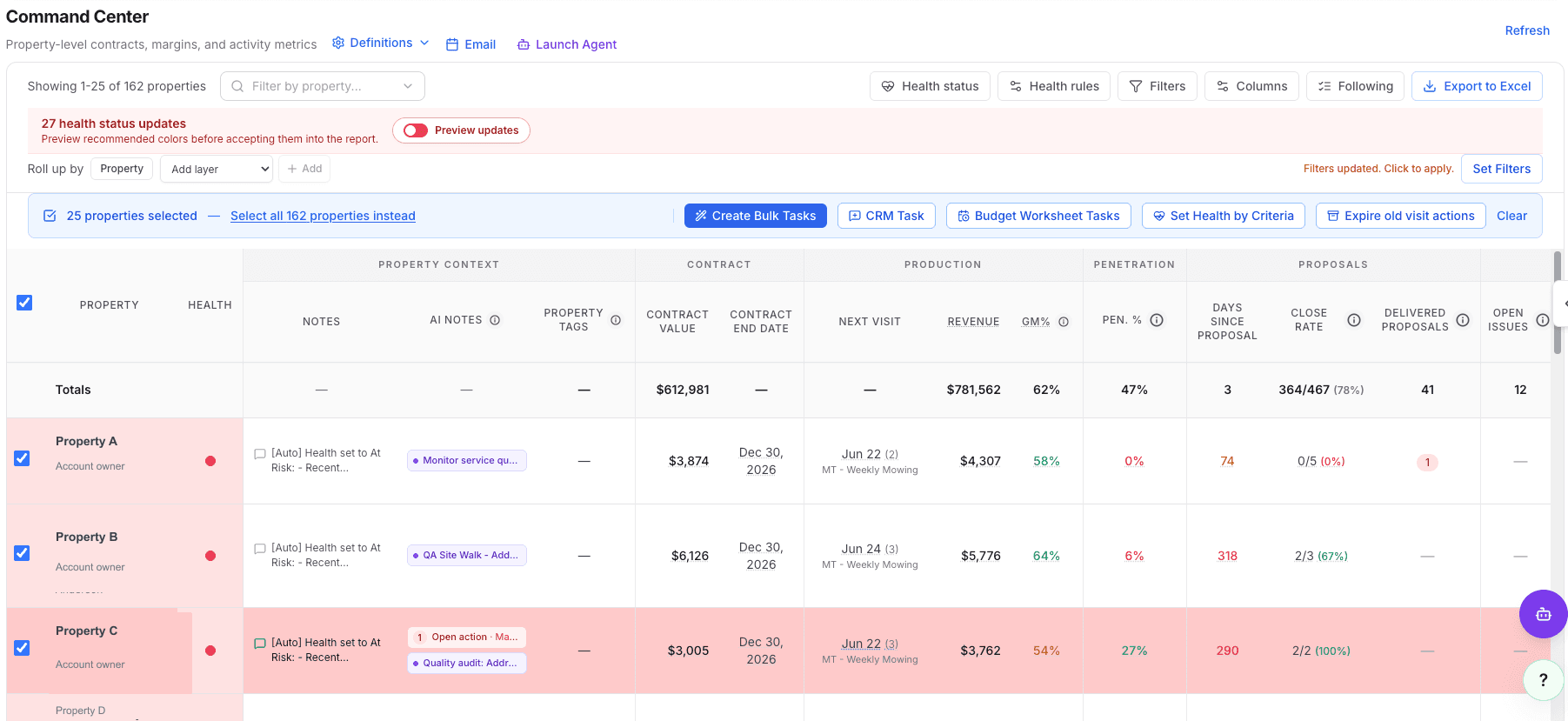
The column is most useful after you narrow the property list to the branch, account owner, or review group that can actually take action.
Open the Recommendation and Decide the Next Step
When a recommendation looks important, open it and read the evidence. The right outcome depends on the work: create a customer note when the account history needs context, create a task when someone needs to do work, or dismiss the recommendation when the team has better local knowledge.
Use notes for customer context
A note is useful when the recommendation should become part of the customer or property history.
Use tasks for owned work
A task is useful when one person needs to follow up, prepare a proposal, check the site, or call the customer.
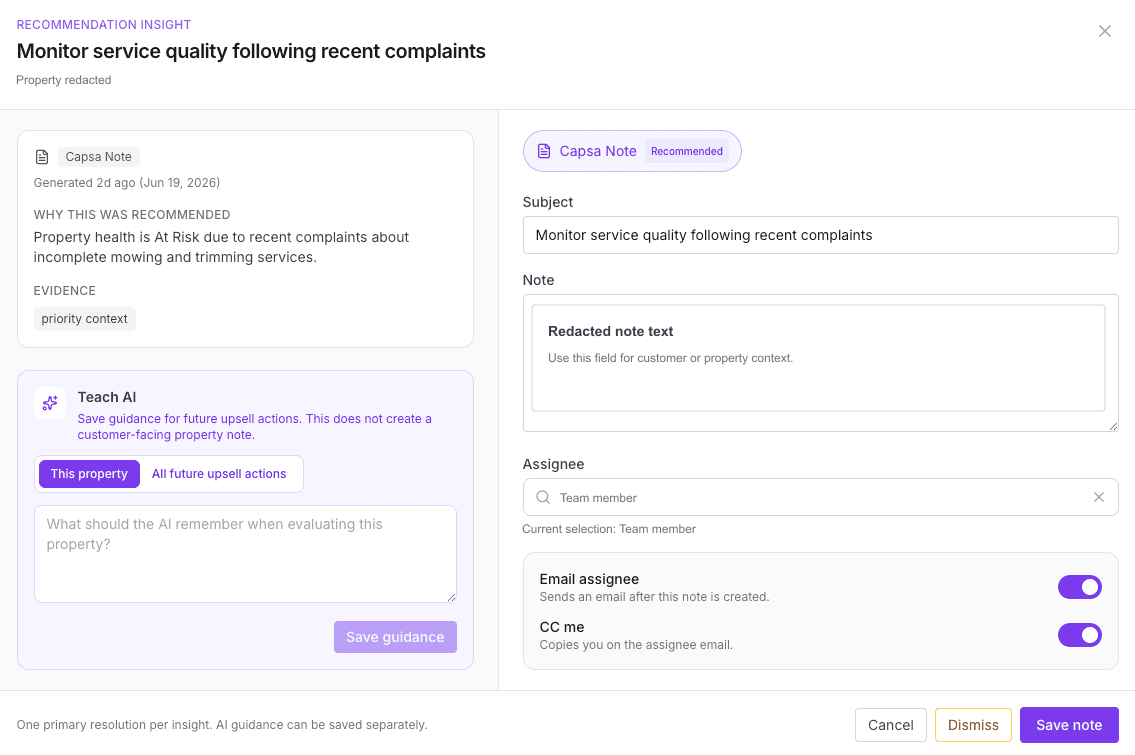
Use a note when the recommendation should add durable customer or property context.
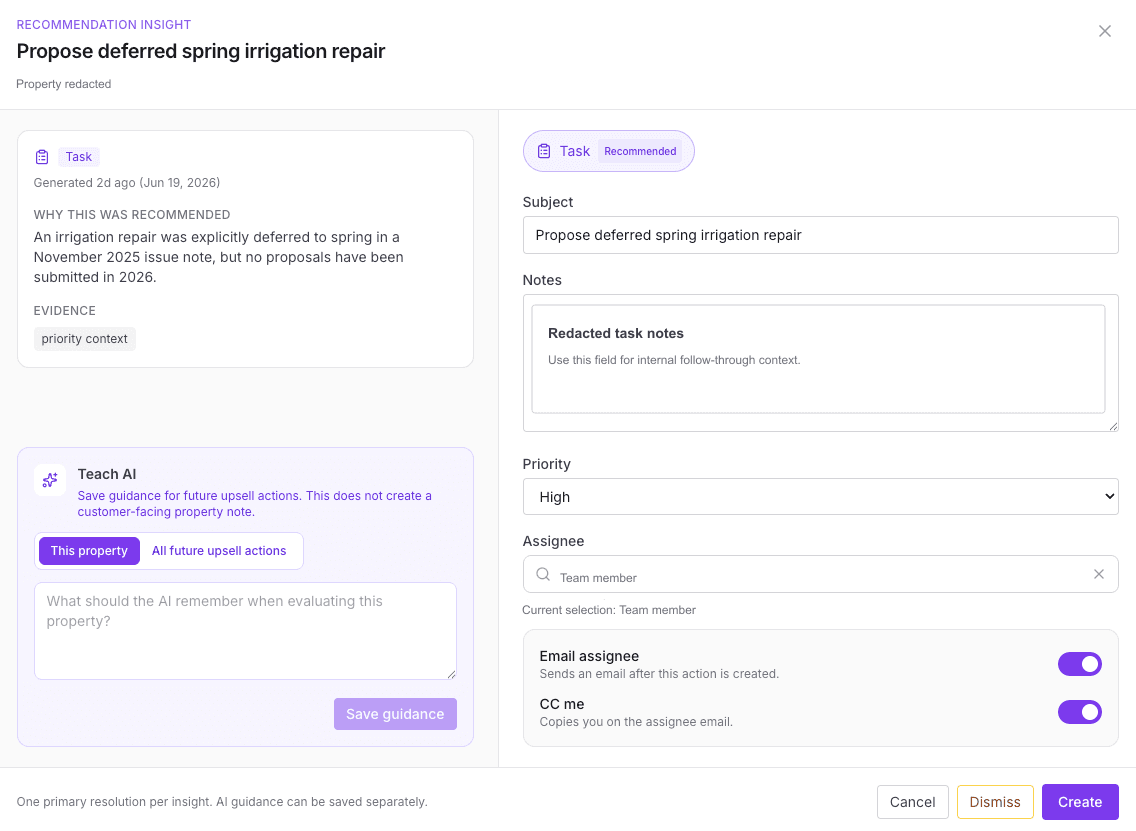
Use a task when the action needs an owner, due attention, or internal follow-through.
Work Visit-Note Actions to Closure
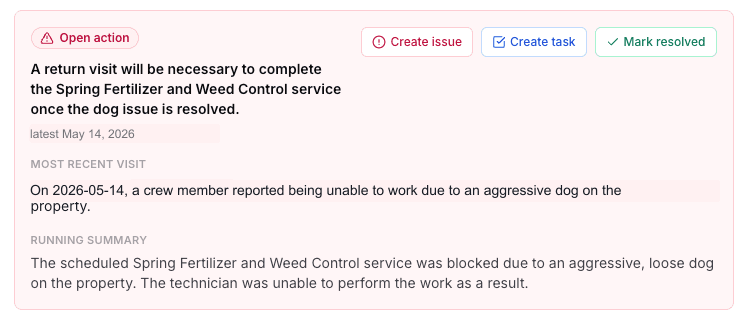
Open visit-note actions are field or customer follow-ups found in recent service notes. They should be treated like a work queue: decide whether the item needs an issue, a task, or can be marked resolved because the team has already handled it.
Keep the status honest
Mark an action resolved only when the issue no longer needs follow-through. If work still needs ownership, create the issue or task instead so it stays visible.
For a deeper branch and account management rhythm, use the visit-note review queue playbook.
Keep Old Items From Crowding the Review
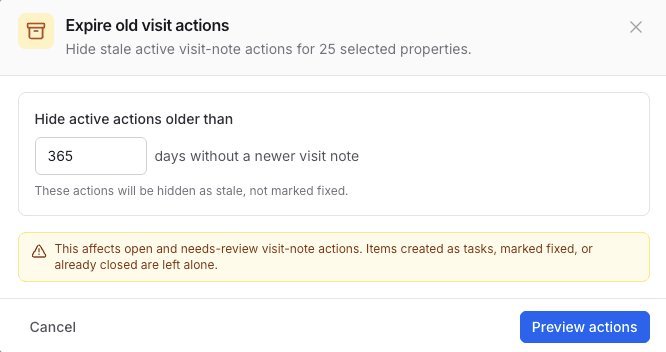
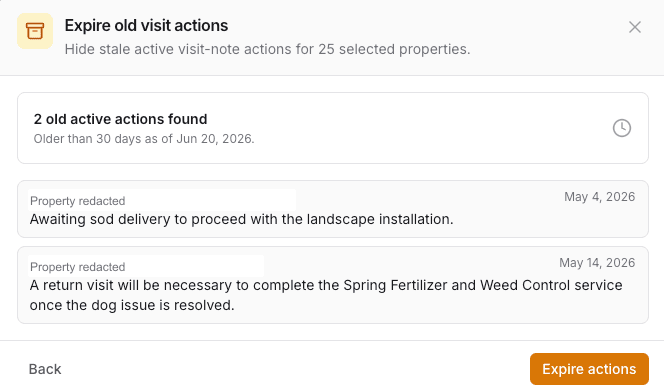
The AI Notes column should help leaders find active work, not preserve every old item forever. When a filtered group has stale visit-note actions, use Expire old visit actions to preview what would be hidden before you apply the cleanup.
What expire means
Expiring an action hides it as stale. It does not mark the work fixed. Items that already became tasks, were marked fixed, or were closed are left alone.
Advanced Tactic: Add AI Training Notes
Use Teach AI when the recommendation is missing durable context that should affect future suggestions. This is different from creating a property note or task. AI training notes are guidance for future AI behavior, and they are not customer-facing property notes. For the separate customer and property history workflow, use How to Use Property Notes in Property Command.
Choose This property
Use this when the guidance is only true for one property, such as a customer constraint, site access issue, or known seasonal exception.
Choose All future actions
Use this when the guidance reflects a broader team preference for how recommendations should be evaluated.
Good training note: For this property, do not recommend irrigation upsell work until the deferred spring repair is complete.
Good training note: For visit-note summaries, treat customer-blocked work as waiting on the customer, not as a crew follow-up.
Skip training notes for: one-off assignments, routine call reminders, or context that belongs in a customer note.
Use Digests to Sustain the Rhythm
A Property Command digest keeps the review cadence alive between meetings. Use it to send health changes, new comments, AI recommendations, and upcoming or overdue check-ins to the people who own the properties.
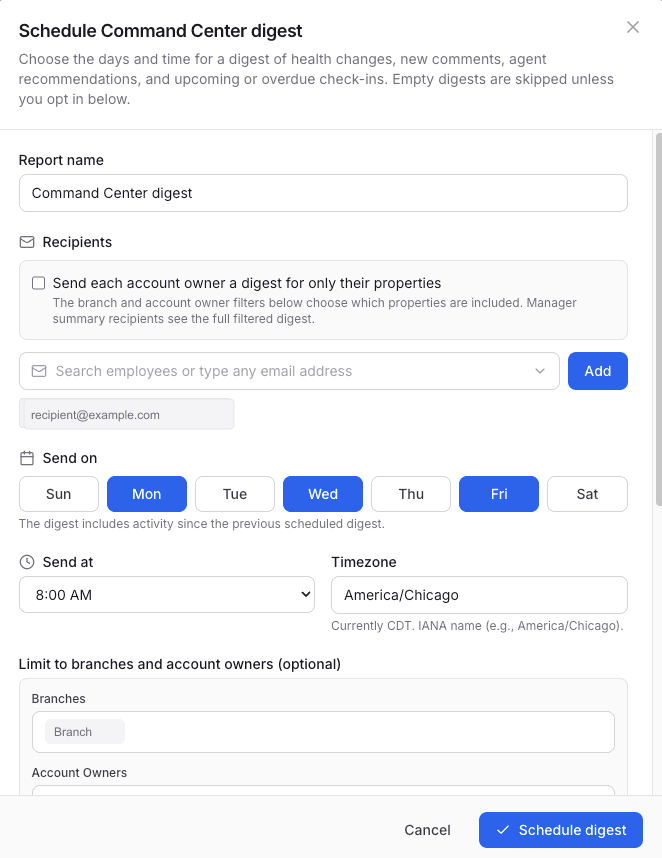
The account-owner option is useful when you want each person to receive only the properties they are responsible for.
Recommended Operating Rhythm
- Daily: Account managers review open AI Notes on their properties and convert real work into notes, tasks, or issues.
- Weekly: Branch managers review the filtered property list, confirm stale items, and make sure red or amber actions have owners.
- Monthly: Owners and branch leadership review patterns across branches, then tighten AI guidance where the same misses repeat.
Best Practices
- Start with a filtered property group. AI Notes works best when the review list matches the team that can take action.
- Separate work from guidance. Use tasks and issues for work. Use AI training notes only for context the AI should remember later.
- Do not let stale items linger. Preview old actions before expiring them, then keep the active list focused on current work.
- Break out visit-note review when needed. Use the visit-note review queue playbook when branch leaders or account managers want a dedicated workflow for open visit-note actions.
- Connect this playbook to property health. Use the Property Command Health playbook to decide which properties need review, then use AI Notes to turn the review into action.