Video Walkthrough
Overview
Scheduled Property Command emails give your team a regular pulse on what needs attention without asking everyone to rebuild the same view. The email comes from Capsa Intelligence, and its subject line uses the report name you choose.
One schedule can send account owners a digest limited to their properties while also sending leaders a summary across the full filtered group. You control the recipients, timing, property scope, and sections included.
What You'll Need
- Access to Property Command in Capsa Intelligence
- The email addresses or account owners who should receive the digest
- Agreement on the properties and signals your team wants to review
- A day and time that supports your team's operating rhythm
Open the Email Scheduler
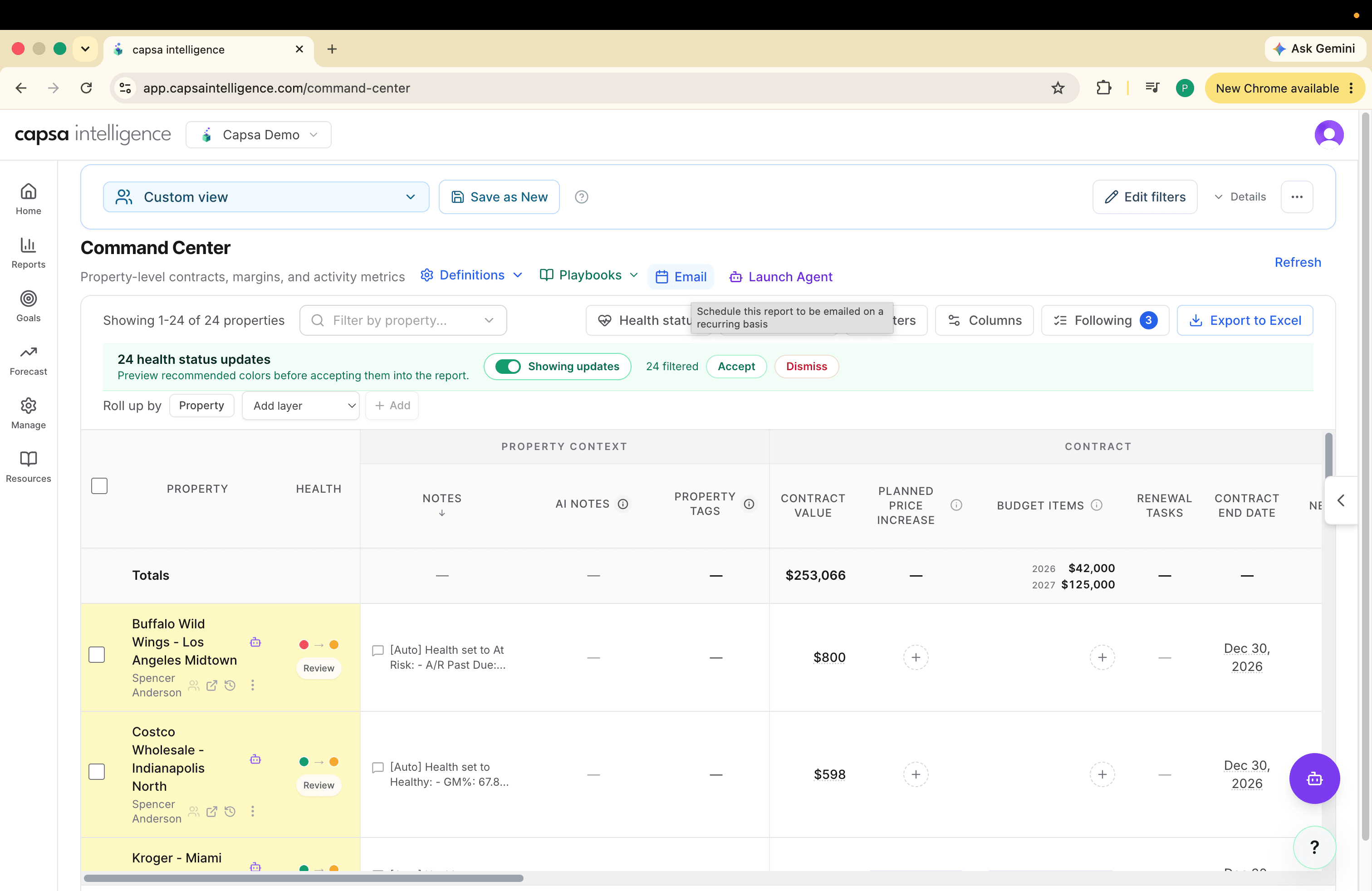
From Property Command, choose Email to open the digest scheduler. The schedule is built from its own saved property filters, so you can set the email's audience without changing the Property Command view you are currently using.
Name the Digest and Choose Recipients
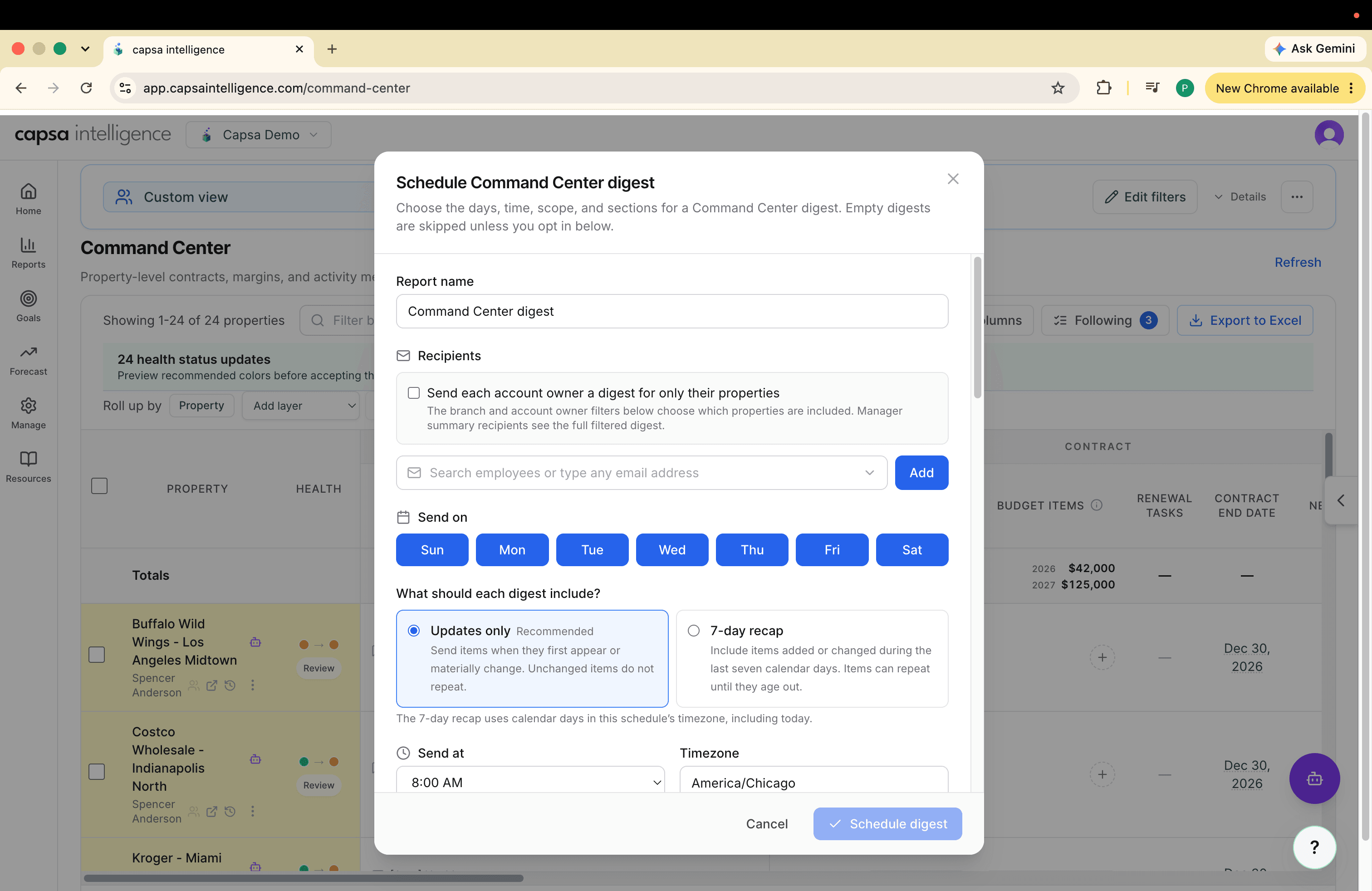
Give the report a name your team will recognize. That name becomes the email subject line. Then choose how the digest should be distributed.
Send one full digest
Enter the email addresses of everyone who should receive the complete report for the saved property scope.
Send each owner their properties
Select the account-owner option to create a filtered digest for each owner. You can also add leaders who should receive the full summary.
Set the Timing and Delivery Mode
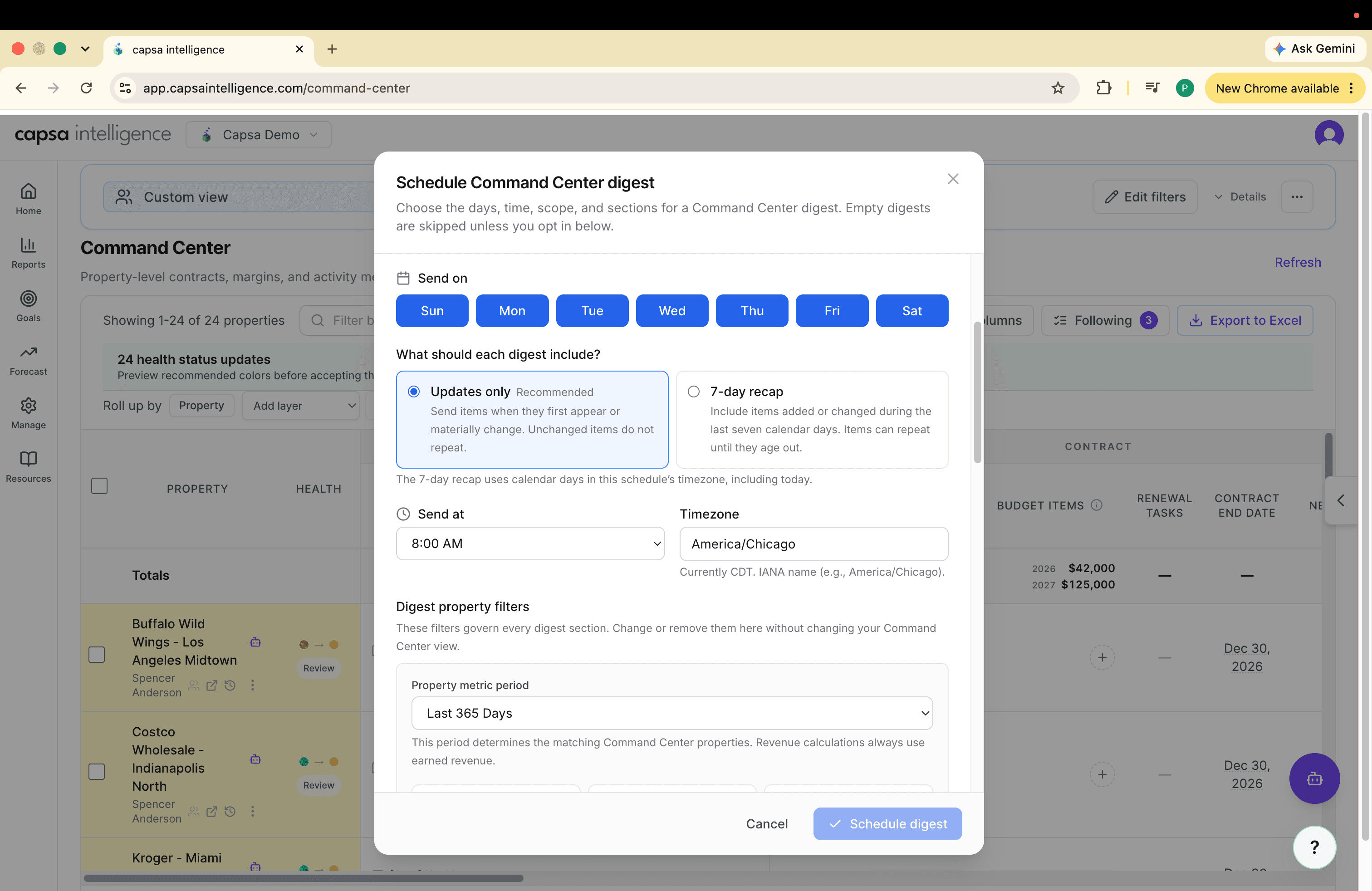
Choose the days, send time, and timezone. Then decide whether each email should include only new updates or a seven-day recap.
Updates only
Use this for a frequent digest that should focus the team on what changed since the last send.
7-day recap
Use this for a weekly review that should gather the most recent week of activity in one place.
Define the Property Scope
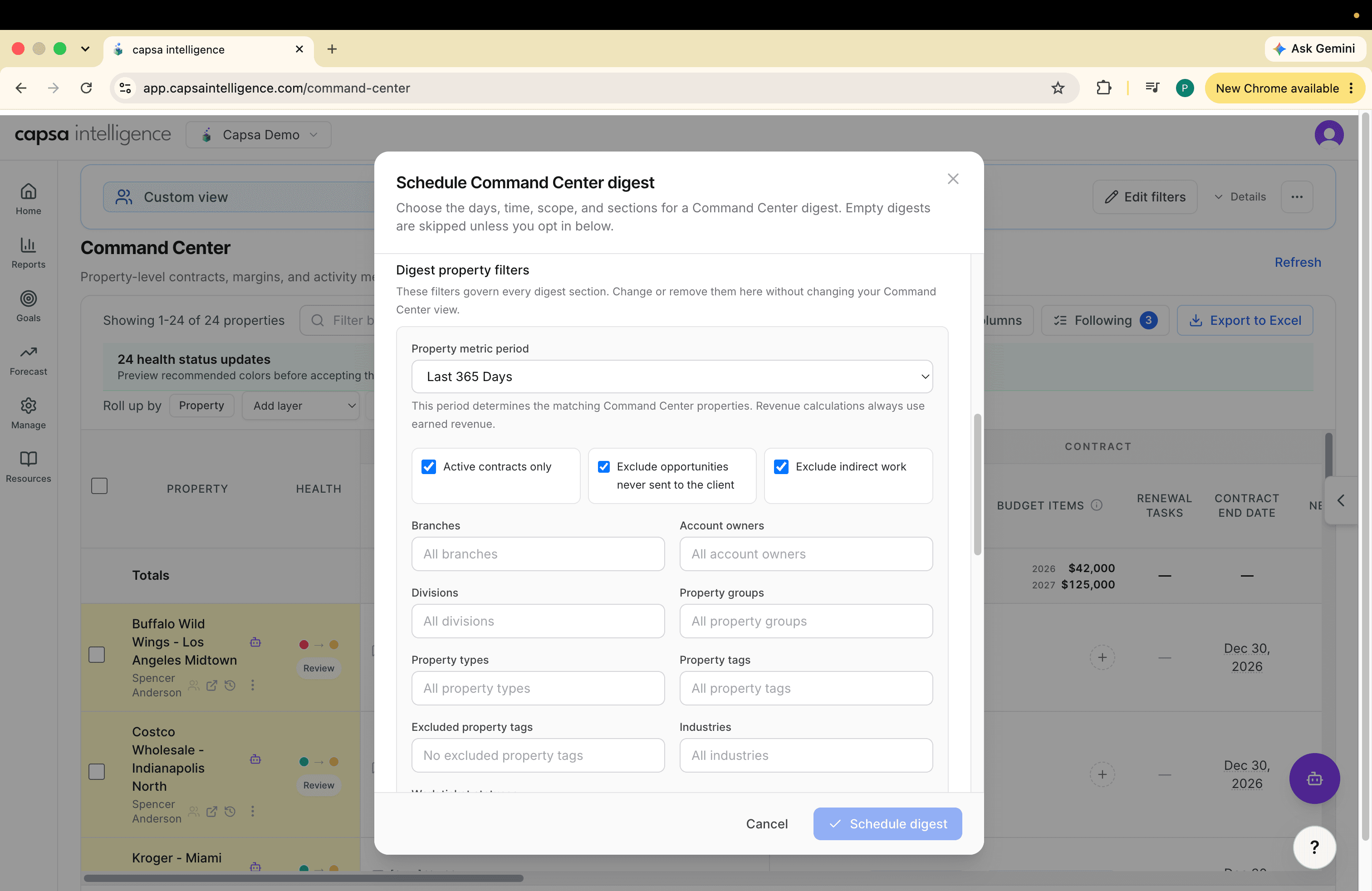
Use the property filters to decide which part of the business the digest covers. Leave a field blank when you want to include every value, or narrow the schedule by branch, account owner, division, property group, property type, tags, or industry.
Keep the audience and scope aligned: when owner-specific delivery is selected, the branch and account-owner filters determine which properties and owners are eligible for the schedule.
Choose the Digest Sections
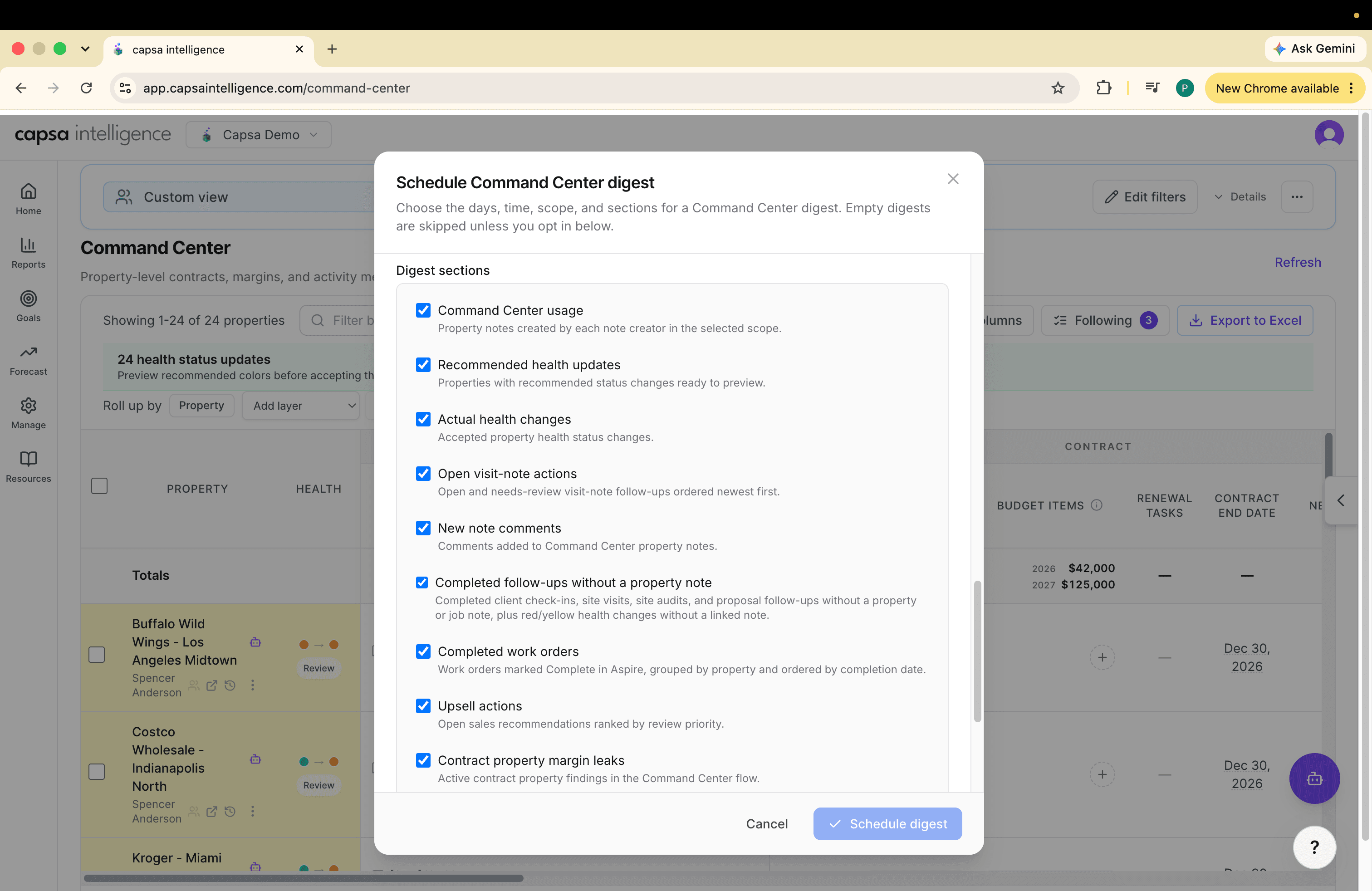
Select the areas of concern and recent activity that belong in the email. Each category highlights up to five items and links back to the full working list in Property Command.
Needs attention
Include signals such as recommended health updates, open visit-note actions, margin leaks, or upsell actions.
Recent activity
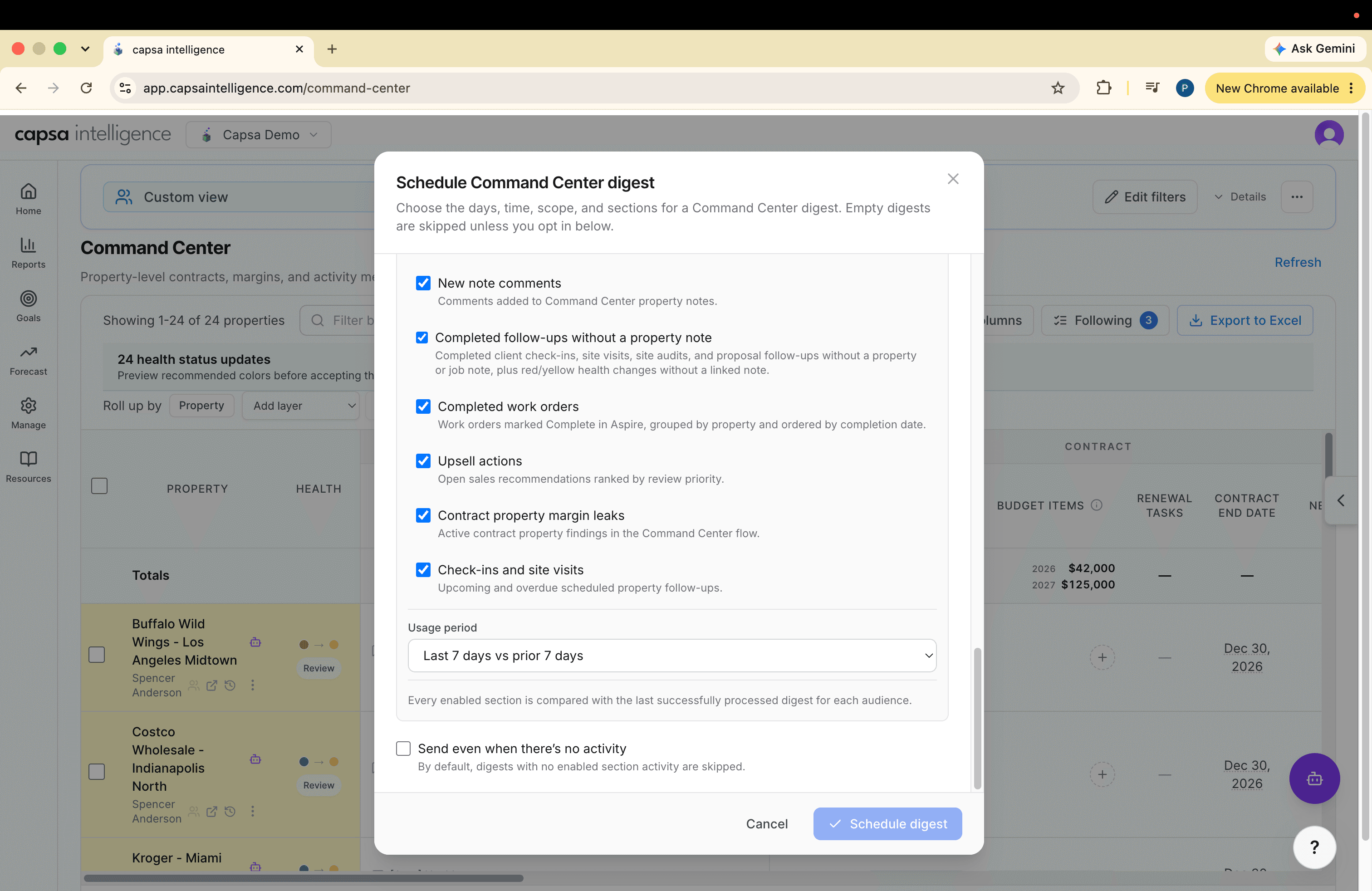
Include signals such as health changes, note comments, completed follow-ups, work orders, check-ins, and site visits.
Finish the Schedule
Choose the comparison period for Property Command usage, then decide whether the email should still send when none of the selected sections has activity. Sending an empty digest can reassure teams that the schedule ran; skipping it keeps inboxes quieter.
Turn the Email into Action
When a digest item needs attention, follow its link into Property Command to see the complete list. From there, use the available review or approval action to create the next task, or dismiss an item that should leave the queue.
For the team rhythm after the email arrives, continue with How to Run Your Week from the Property Command Digest.
Best Practices
- Name it for the audience. A clear subject such as “Monday Branch Review” helps recipients understand why it arrived.
- Start with fewer sections. Include the signals your team has committed to review, then add more when each section has a clear owner.
- Match the send time to the meeting. Schedule the digest early enough for leaders to scan it before the working session begins.